Market Research Report
Docs + Word6 pages
FeaturedFree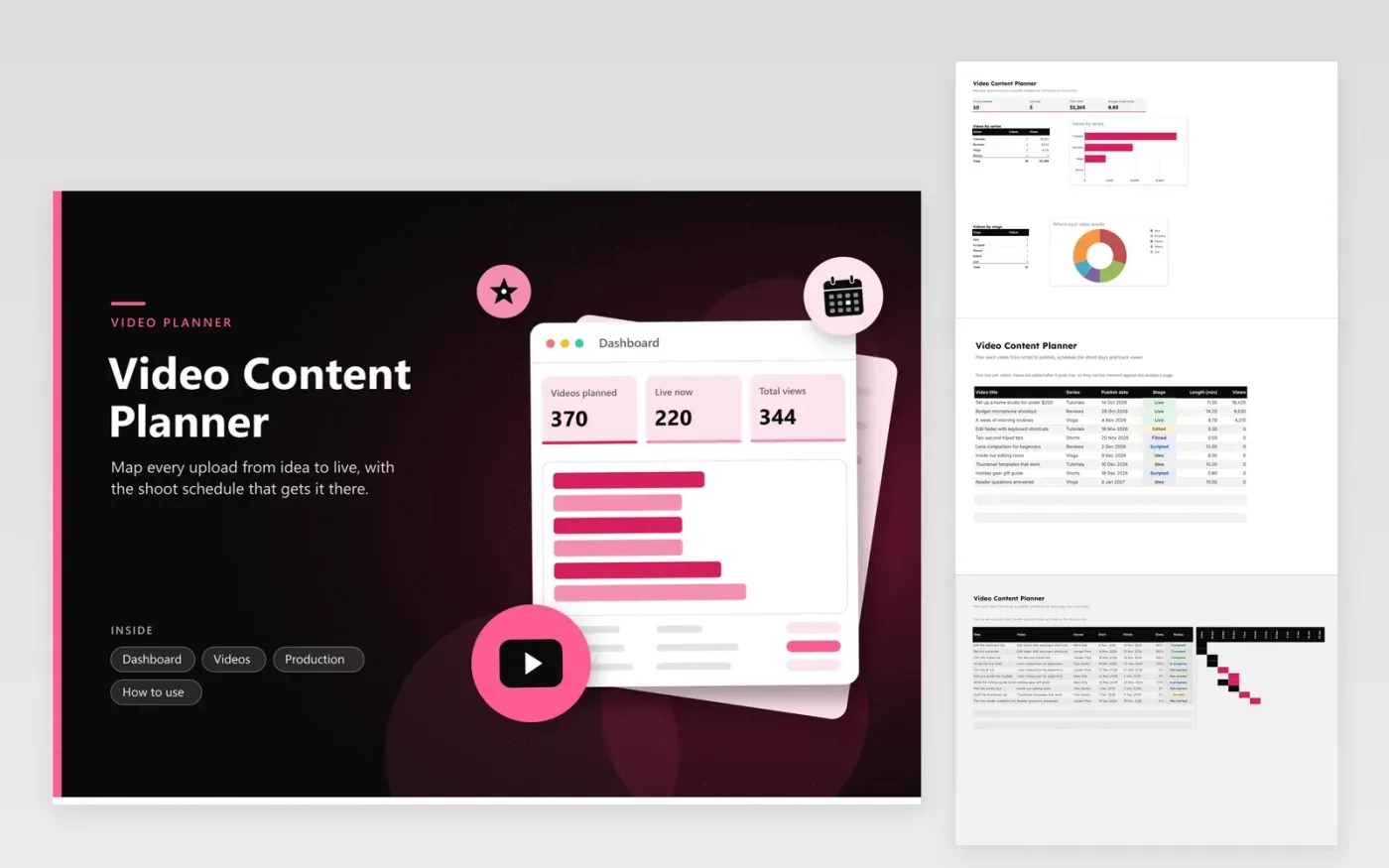
The Video Content Planner suits a creator or small channel team that publishes on a regular schedule. The Videos tab lists every upload with its series, publish date, stage from Idea to Live, length in minutes and views. The Production tab breaks each video into steps such as scripting, filming and grading, with an owner, a start date, a finish date and a percent done that fills a timeline. The dashboard totals views and shows which series brings in the most.
Start each new video as an idea row, then add its production steps before the shoot is booked. Use the series list so the views breakdown stays accurate. After a video goes live, copy its view count in once a week and note the length in minutes, which makes it easier to compare short clips with long tutorials over time.
Click Make a copy in Google Sheets, then confirm on the Google page. The copy is saved to your own Google Drive.
Start on the Videos tab: replace the sample rows with your own.
Keep the formula columns as they are; they fill in as you type.
Read the How to use tab for tips. For Excel, download the .xlsx file instead.
Three to six is enough for most channels: a script, the shoot, the edit and a thumbnail. Add a step only when someone owns it and it has its own dates. Too many steps make the timeline hard to read at a glance.
Copy them from the analytics page of your video platform. Use the same date range each week so the numbers are comparable. The template does not connect to any account, so the figures stay in the sheet only when you type them in.
Yes. Choose Shorts in the Series list and enter the length as a decimal, such as 0.5 for thirty seconds. The series breakdown then shows short clips beside tutorials and vlogs, so you can compare them directly.
Docs + Word6 pages
FeaturedFree
Google Sheets
FeaturedFree
Sheets + Excel4 tabs
Free
Sheets + Excel5 tabs
Free
Sheets + Excel5 tabs
Free
Sheets + Excel5 tabs
Free
Sheets + Excel5 tabs
Free
Sheets + Excel4 tabs
Free
Sheets + Excel4 tabs
Free