Market Research Report
Docs + Word6 pages
FeaturedFree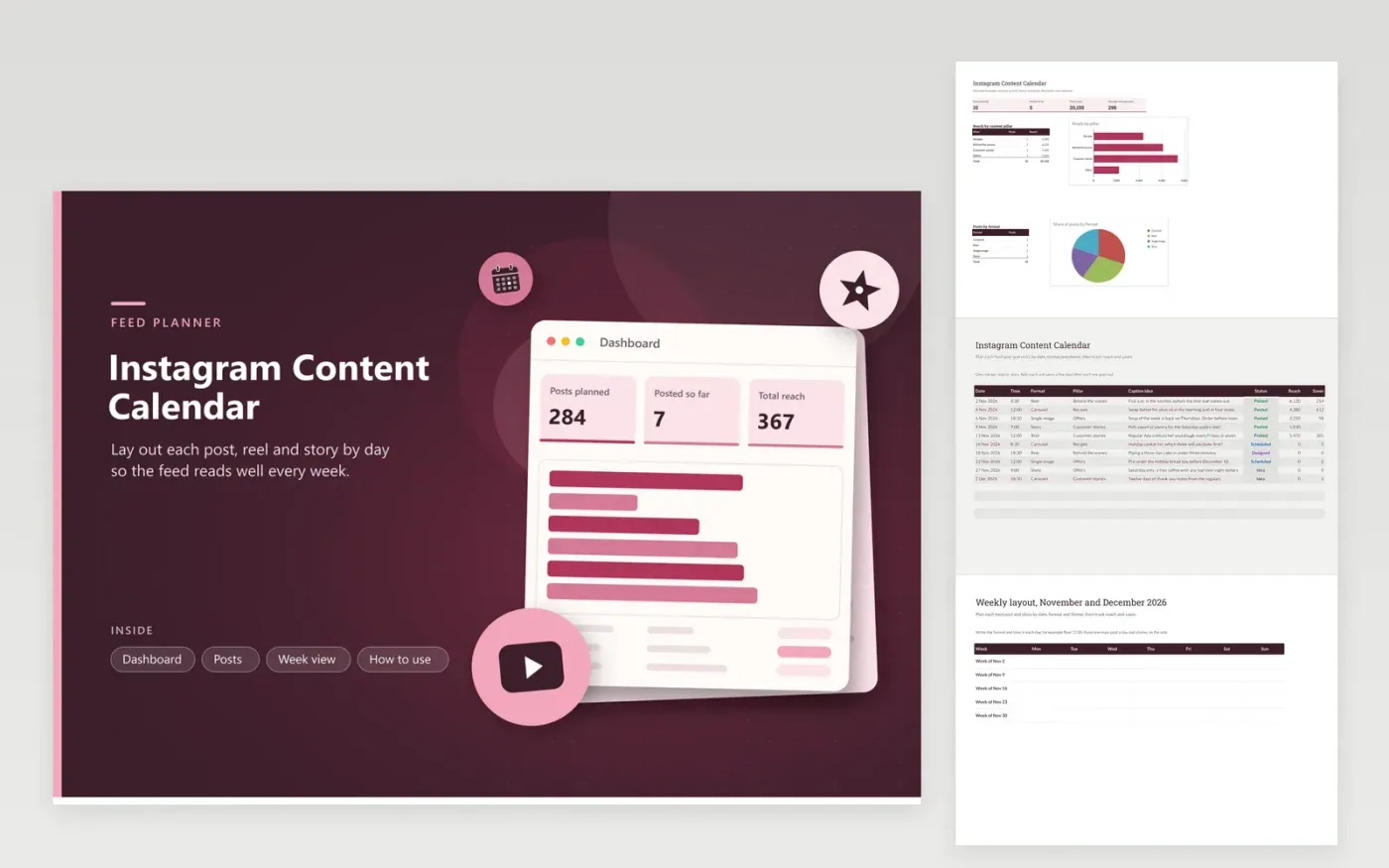
The Instagram Content Calendar is for a small brand, shop or creator who posts several times a week. The Posts tab holds each planned item with its date, time, format, content pillar, caption idea, status from Idea to Posted, reach and saves. The Week view tab lays the next weeks out as a grid so you can see the rhythm of the feed. The dashboard shows total reach, average saves on posted items, and how the pillars and formats compare.
Plan at least two weeks ahead and mix the pillars so no single theme takes over the grid. Use the Week view to check that reels, carousels and single images alternate. Fill in reach and saves a few days after each post, then compare the Recipes and Offers pillars to decide which ones to repeat next month.
Click Make a copy in Google Sheets, then confirm on the Google page. The copy is saved to your own Google Drive.
Start on the Posts tab: replace the sample rows with your own.
Keep the formula columns as they are; they fill in as you type.
Read the How to use tab for tips. For Excel, download the .xlsx file instead.
Choose a number you can keep up with, such as three feed posts and four stories. Plan the feed first, then add stories on quieter days. Adding rows to the Posts tab is quick, so start small and grow the schedule over time.
No. The sheet plans and tracks posts but does not publish them. Schedule the approved posts in your social media tool, then record the date and status here so everyone on the team knows what has gone out.
Stories disappear after a day, so the platform often reports no saves for them. Leave the saves cell blank rather than typing zero. Blank cells are skipped by the average saves figure on the dashboard, so the number reflects feed posts only.
Docs + Word6 pages
FeaturedFree
Google Sheets
FeaturedFree
Sheets + Excel4 tabs
Free
Sheets + Excel5 tabs
Free
Sheets + Excel5 tabs
Free
Sheets + Excel5 tabs
Free
Sheets + Excel5 tabs
Free
Sheets + Excel4 tabs
Free
Sheets + Excel4 tabs
Free