Market Research Report
Docs + Word6 pages
Free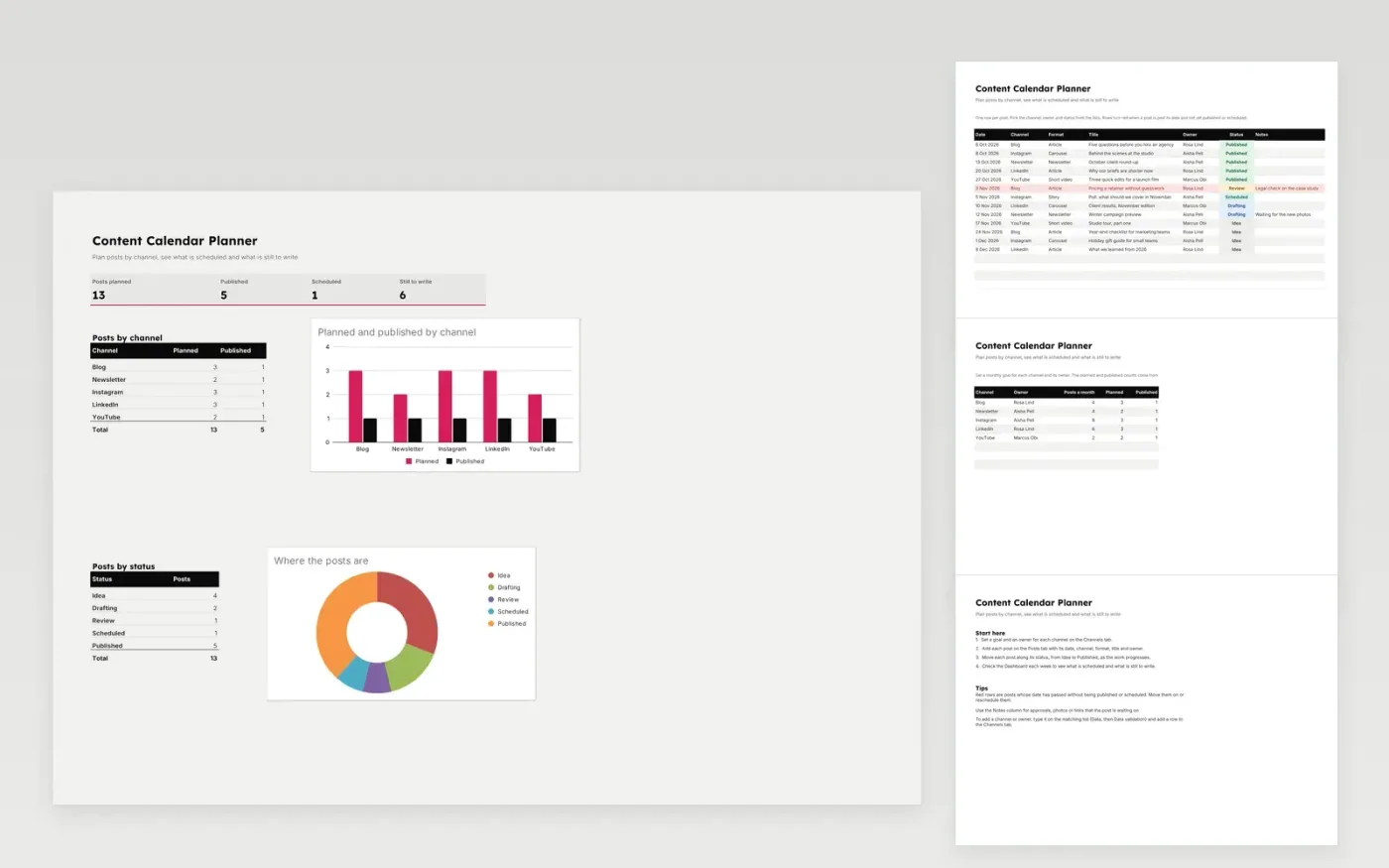
This template plans content across the channels a marketing team uses, such as a blog, newsletter and social accounts. The Posts tab holds one row per post, with its date, channel, format, title, owner and status.
The Channels tab sets a monthly goal and owner for each channel and counts what is planned and published. The Dashboard shows the number of posts planned, published, scheduled and still to write, with charts by channel and by status.
It comes with sample data. Make a copy, then replace the sample rows with your own posts. Formulas, dropdowns and charts update on their own.
Click Make a copy in Google Sheets, then confirm on the Google page. The copy is saved to your own Google Drive.
Start on the Posts tab: replace the sample rows with your own.
Keep the formula columns as they are; they fill in as you type.
Read the How to use tab for tips. For Excel, download the .xlsx file instead.
Yes. Download the template and use it in Google Sheets or Excel at no cost.
Yes. Download the .xlsx file to open it in Excel. The dropdowns, formulas and charts work in both Excel and Google Sheets.
Yes. Add it to the Channel list (Data, then Data validation), then add a row for it on the Channels tab and in the dashboard table.
Docs + Word6 pages
Free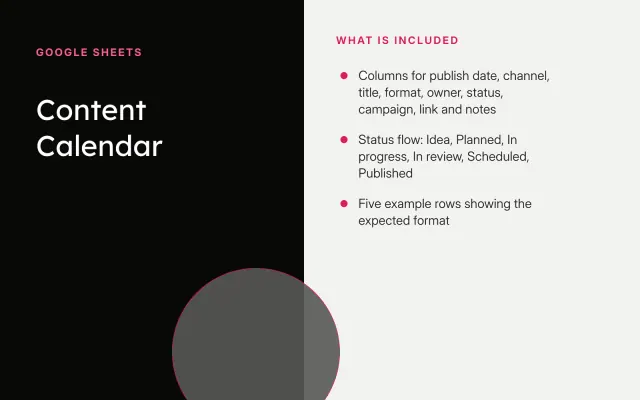
Google Sheets
Free
n8n
Free