Market Research Report
Docs + Word6 pages
FeaturedFree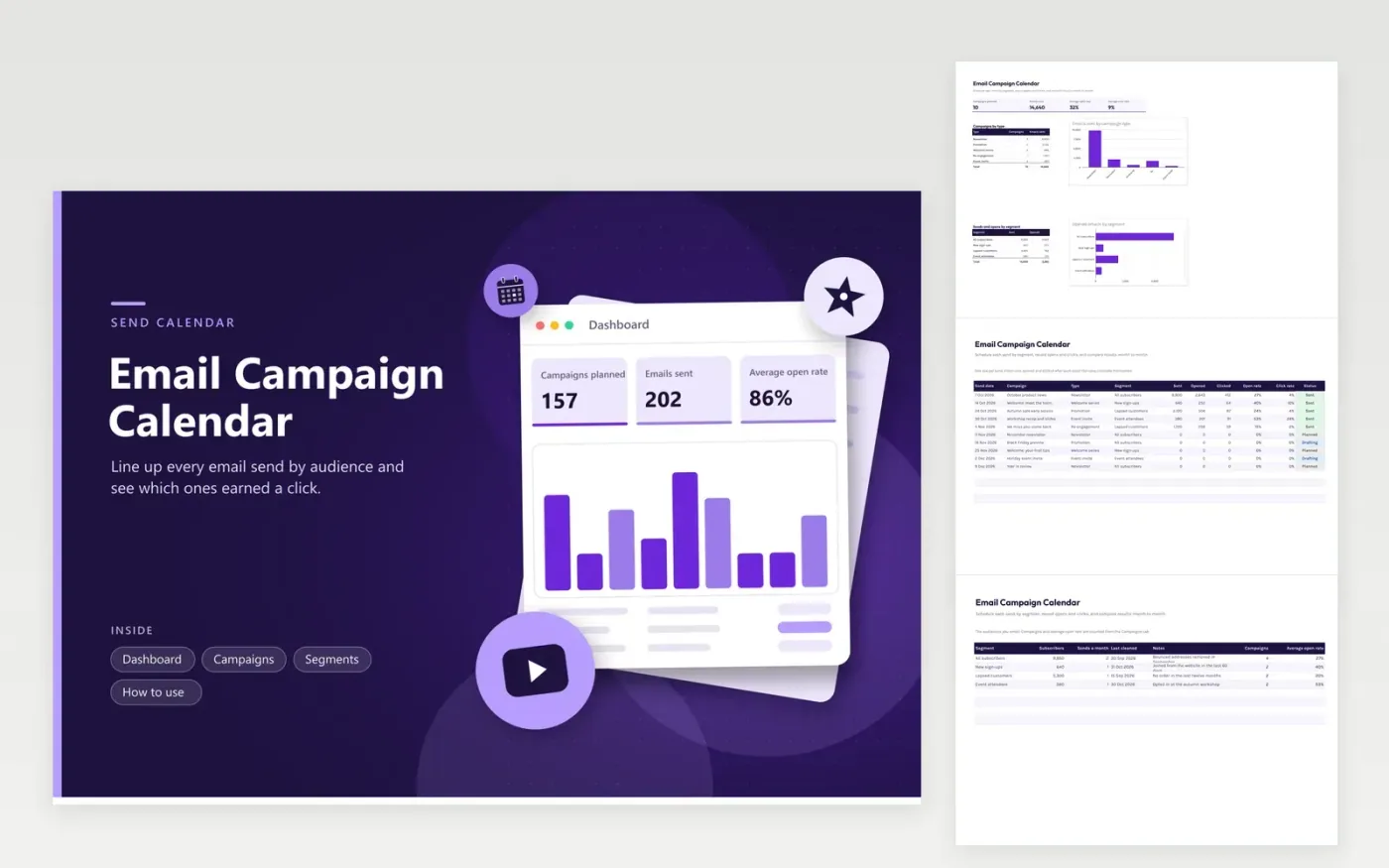
The Email Campaign Calendar is for a marketer or small business owner who sends newsletters, promotions and welcome messages on a regular cycle. The Campaigns tab lists each send with its date, type, audience segment, the number sent, opened and clicked, and a status from Planned to Sent. Open and click rates calculate themselves. The Segments tab holds the size of each audience, how often it is emailed and when it was last cleaned.
Plan the next six weeks of sends before the month begins, so audiences are not emailed too often. Enter the counts within a day or two of each send, because the email tool's figures change over the first few days. Review the segment table each quarter and remove addresses that bounce, then compare the open rate of each segment before choosing the next offer to test.
Click Make a copy in Google Sheets, then confirm on the Google page. The copy is saved to your own Google Drive.
Start on the Campaigns tab: replace the sample rows with your own.
Keep the formula columns as they are; they fill in as you type.
Read the How to use tab for tips. For Excel, download the .xlsx file instead.
The rates divide clicks and opens by the number sent, so they stay at zero until the sent count is filled in. Enter the figures after the send, and the rate appears on its own. The dashboard averages only include rows with the status Sent.
Keep each segment separate, since an offer that works for lapsed customers may do poorly with new sign-ups. The segment table shows the average open rate for each group, which is more useful than one figure for the whole list.
Add one row for each segment, with the same campaign name and send date. Then the totals and averages on the dashboard reflect each audience. Use the same campaign name on both rows so you can filter them together later.
Docs + Word6 pages
FeaturedFree
Google Sheets
FeaturedFree
Sheets + Excel4 tabs
Free
Sheets + Excel5 tabs
Free
Sheets + Excel5 tabs
Free
Sheets + Excel5 tabs
Free
Sheets + Excel5 tabs
Free
Sheets + Excel4 tabs
Free
Sheets + Excel4 tabs
Free