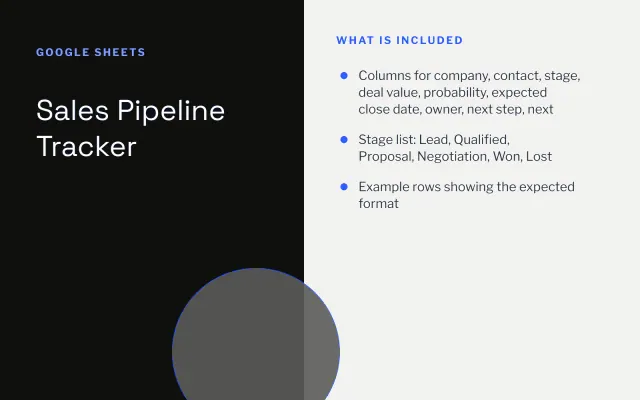
Sales Pipeline Tracker
Google Sheets
Free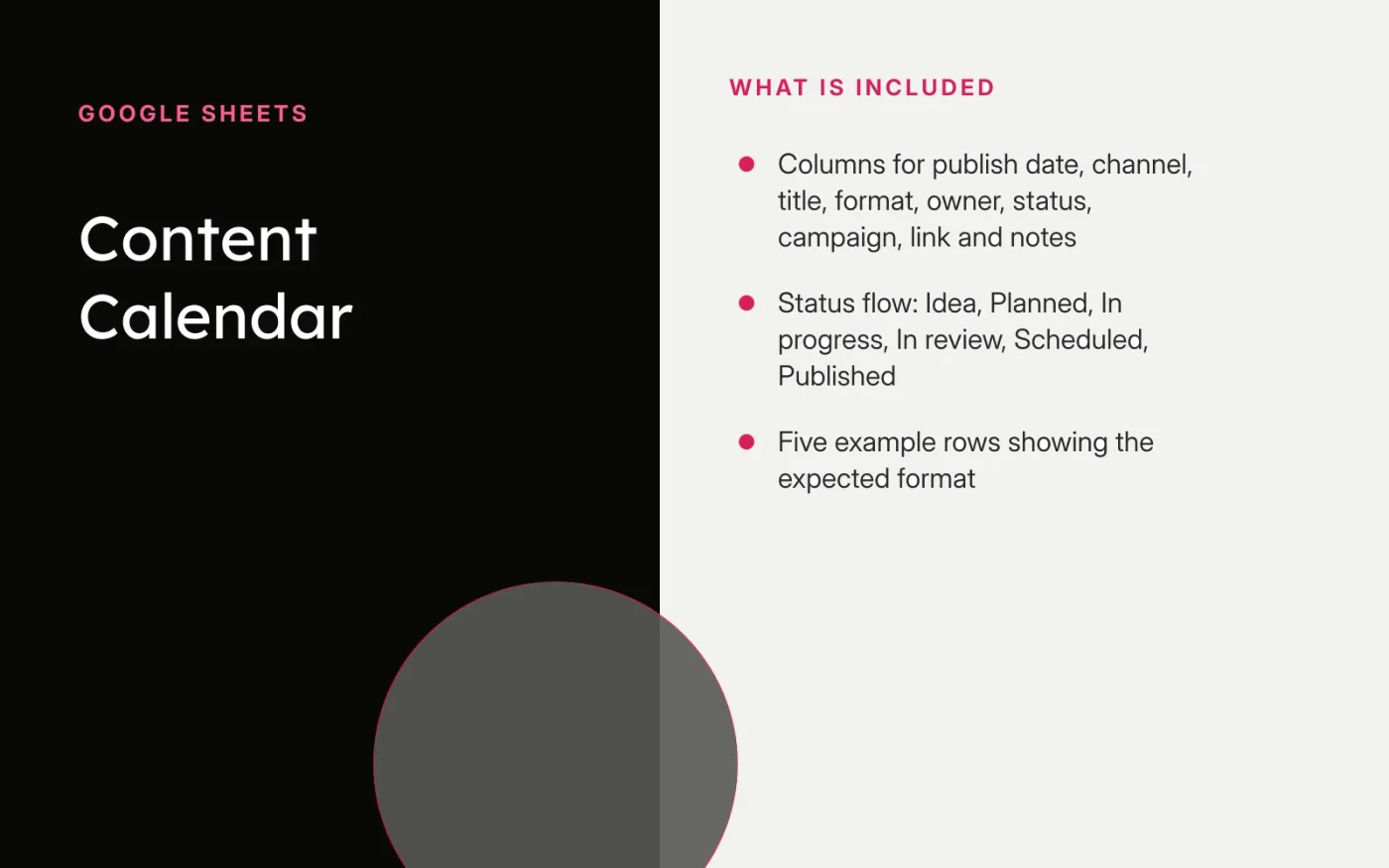
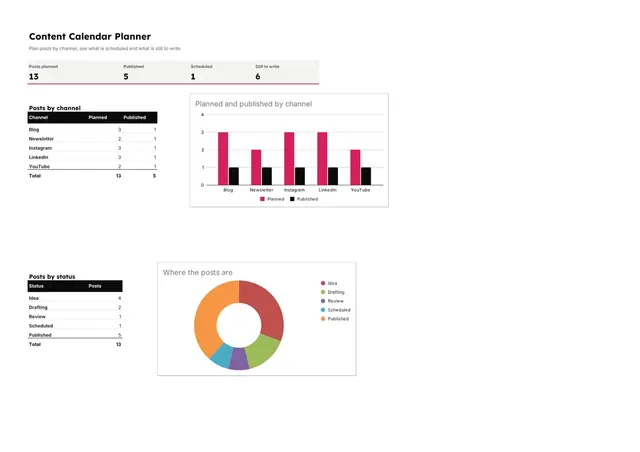
A content calendar works when everyone on the team can answer three questions at a glance: what is going out this week, who owns it, and what is blocked. This sheet uses one row per piece of content with columns for channel, owner, status and dates.
The example rows show the expected format and can be deleted. Statuses follow a simple flow from Idea to Published, which makes filtering for the week ahead straightforward.
Download the CSV file.
In Google Sheets, create a blank spreadsheet and choose File → Import → Upload, then select the file.
Freeze the header row with View → Freeze → 1 row.
Select the Status column and use Insert → Dropdown to restrict it to the six status values.
Delete the example rows and add your own content.
Google Sheets
Free
Excel
Free
Docs + Word6 pages
Free
Docs + Word6 pages
Free
Slides + PowerPoint12 slides
Free
Docs + Word8 pages
Free
Docs + Word9 pages
Free
Docs + Word2 pages
Free
Slides + PowerPoint12 slides
Free