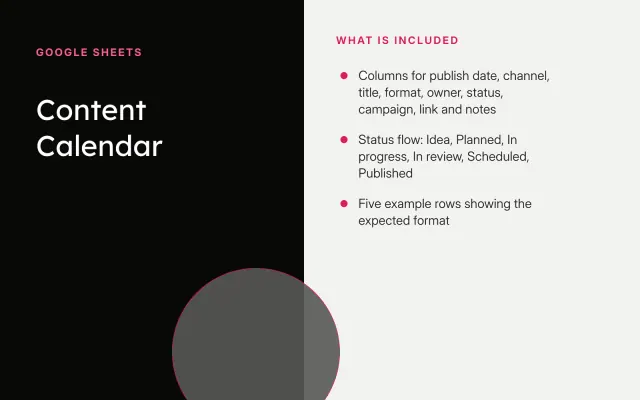
Content Calendar
Google Sheets
Free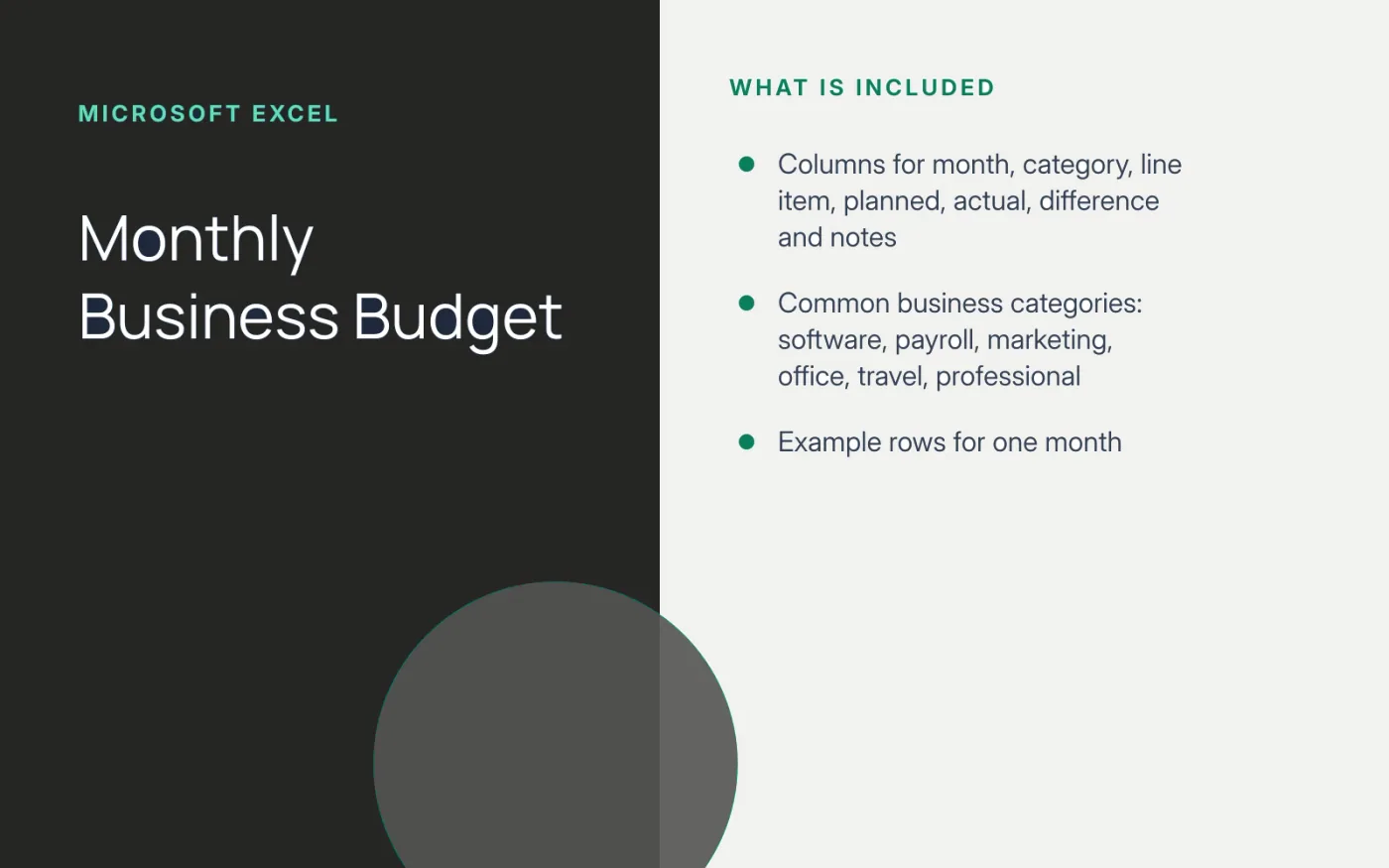
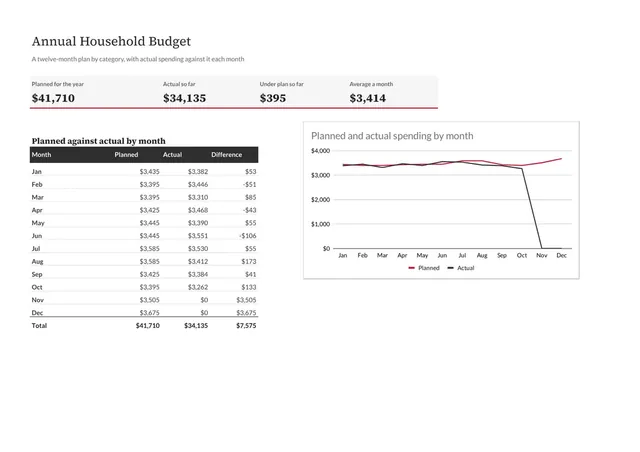
This budget keeps one row per budget line with planned and actual amounts side by side. The difference column shows at a glance where spending is running ahead of plan.
It is intentionally simple: no hidden sheets or macros. Convert it into an Excel table and you get filtering, banded rows and an automatic total row.
Download the CSV and open it in Excel.
Save it as an Excel workbook (.xlsx) so formatting and formulas are kept.
Select any cell in the data and press Ctrl+T to create a table.
In the Difference column, enter =[@Planned]-[@Actual] so it updates automatically for every row.
Enable Table Design → Total Row to sum planned, actual and difference.
Google Sheets
Free
Docs + Word6 pages
Free
Sheets + Excel4 slides
Free
Slides + PowerPoint10 slides
Free
Docs + Word7 pages
Free
Slides + PowerPoint10 slides
Free
Slides + PowerPoint10 slides
Free
Docs + Word8 pages
Free
Docs + Word7 pages
Free