Annual Report
Docs + Word6 pages
FeaturedFree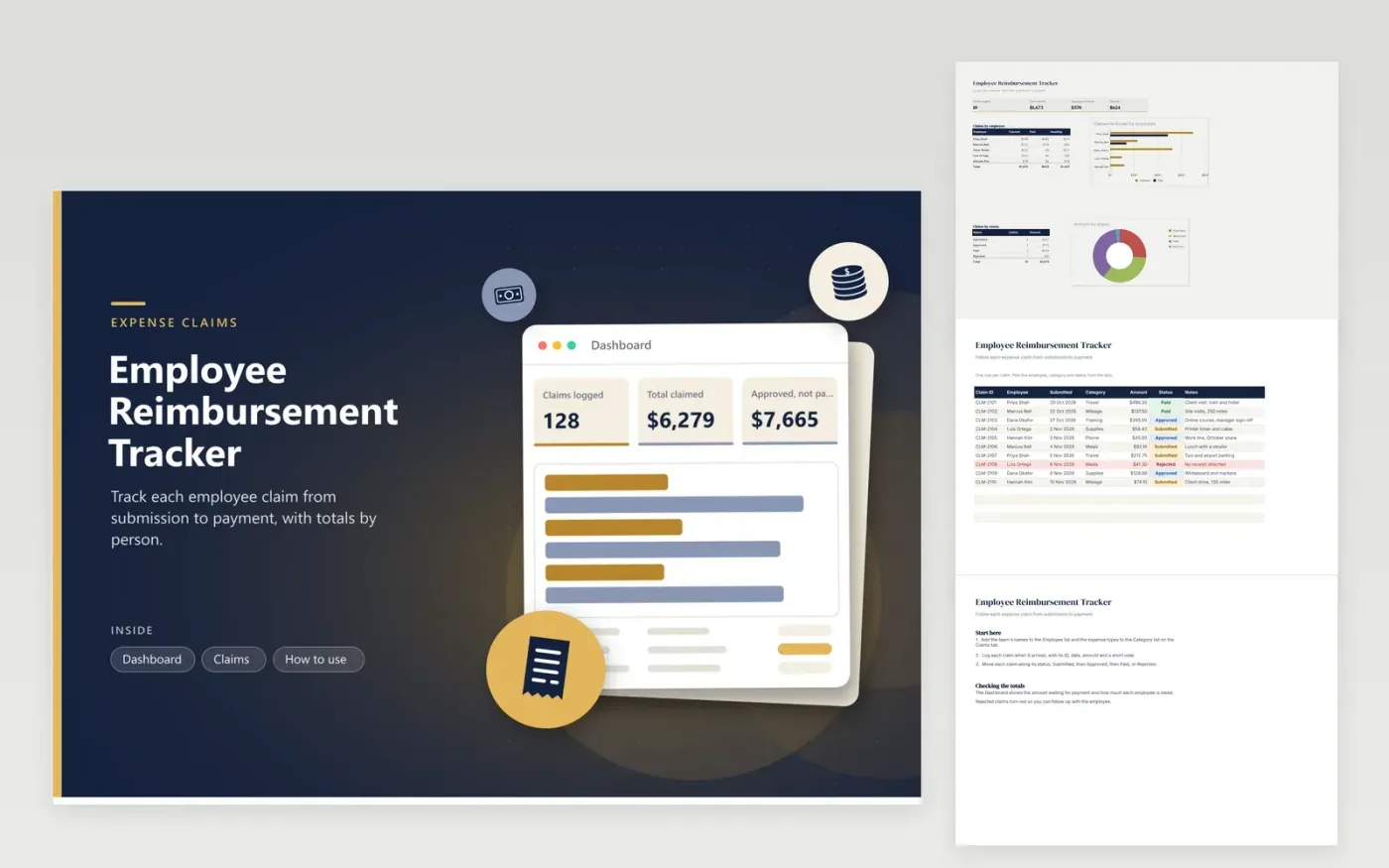
This tracker suits finance and office staff who handle expense claims for a small team. The Claims tab records each claim with its ID, employee, submitted date, category, amount, status and notes. The Dashboard shows the total claimed, the amount approved but not yet paid and the amount paid out, then splits the claims by employee and by status with charts.
Set up the employee names and categories in the dropdown lists on the Claims tab before you start, so every claim matches a name in the breakdown. Move a claim from Submitted to Approved and then to Paid as the process moves along. Rejected claims show in red, which makes them easy to follow up with the employee. Keep one file per year so the list stays easy to read.
Click Make a copy in Google Sheets, then confirm on the Google page. The copy is saved to your own Google Drive.
Start on the Claims tab: replace the sample rows with your own.
Keep the formula columns as they are; they fill in as you type.
Read the How to use tab for tips. For Excel, download the .xlsx file instead.
This template does not enforce limits, but you can add a column for the limit and a check that compares each amount with it. Policies vary, so compare every claim with your company rules before you approve it.
Submitted means the employee has sent the claim and it is waiting for review. Approved means it has passed review but is not yet paid. Paid means the money has gone out, and Rejected means the claim was turned down.
Look at the employee breakdown on the Dashboard. Each row shows the amount claimed, the amount paid and the amount still awaiting payment for that person. Filter the Claims tab by name to list their individual claims.
Docs + Word6 pages
FeaturedFree
Excel
FeaturedFree
Sheets + Excel9 tabs
Free
Sheets + Excel5 tabs
Free
Sheets + Excel5 tabs
Free
Sheets + Excel5 tabs
Free
Sheets + Excel5 tabs
Free
Sheets + Excel5 tabs
Free
Sheets + Excel5 tabs
Free
Sheets + Excel4 tabs
Free
Sheets + Excel4 tabs
Free
Sheets + Excel5 tabs
Free
Sheets + Excel3 tabs
Free
Sheets + Excel3 tabs
Free
Sheets + Excel3 tabs
Free