Annual Report
Docs + Word6 pages
FeaturedFree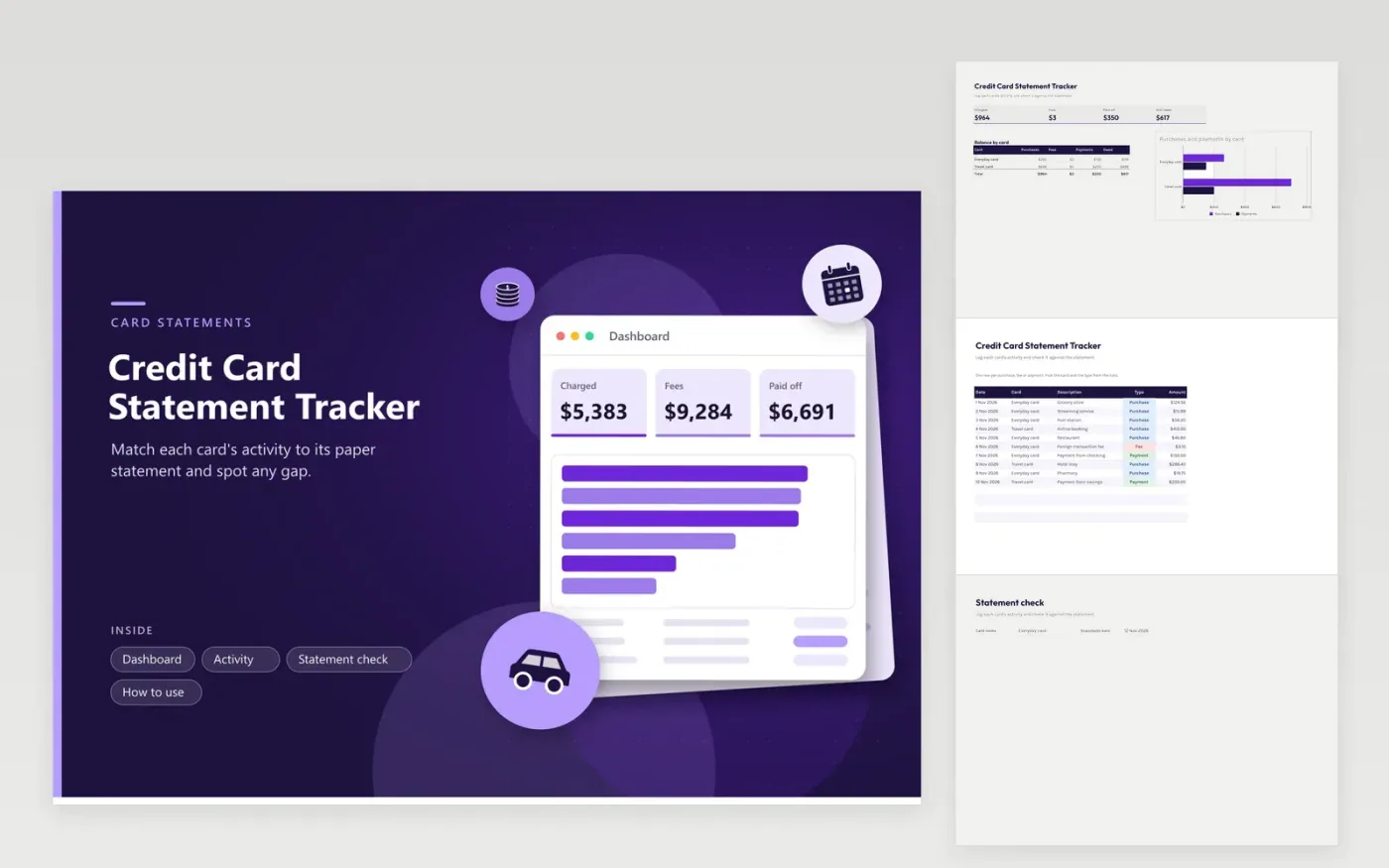
The Credit Card Statement Tracker is for people with more than one card who want to check each statement before paying. The Activity tab lists each purchase, fee and payment with its card, description and amount. The Dashboard totals charges, fees and payments and shows what is still owed across all cards and on each card.
The Statement check tab reconciles one card. Enter the card name, the statement date and the balance printed on the statement. The sheet adds up the purchases, fees and payments for that card and shows the difference. A difference of zero means the log matches the statement. Anything else is worth checking before the due date.
Click Make a copy in Google Sheets, then confirm on the Google page. The copy is saved to your own Google Drive.
Start on the Activity tab: replace the sample rows with your own.
Keep the formula columns as they are; they fill in as you type.
Read the How to use tab for tips. For Excel, download the .xlsx file instead.
Look for a purchase that has not been logged, a payment made after the statement date, or a refund that was not entered. Add the missing line to the Activity tab and the check updates on its own.
This template uses three types: Purchase, Fee and Payment. Enter a refund as a Payment, so the amount owed drops by the same figure. The Payments total then includes it, and the card's balance follows.
Yes. Add the card name to the Card list on the Activity tab, then list it in the Balance by card breakdown on the Dashboard as well. Use the same spelling in both places so its figures are counted.
Docs + Word6 pages
FeaturedFree
Excel
FeaturedFree
Sheets + Excel9 tabs
Free
Sheets + Excel5 tabs
Free
Sheets + Excel4 tabs
Free
Sheets + Excel5 tabs
Free
Sheets + Excel5 tabs
Free
Sheets + Excel5 tabs
Free
Sheets + Excel5 tabs
Free
Sheets + Excel4 tabs
Free
Sheets + Excel4 tabs
Free
Sheets + Excel5 tabs
Free
Sheets + Excel3 tabs
Free
Sheets + Excel3 tabs
Free
Sheets + Excel3 tabs
Free