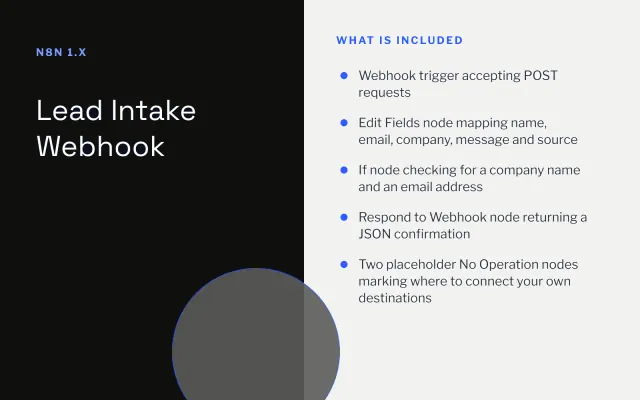
Lead Intake Webhook
n8n
FeaturedFree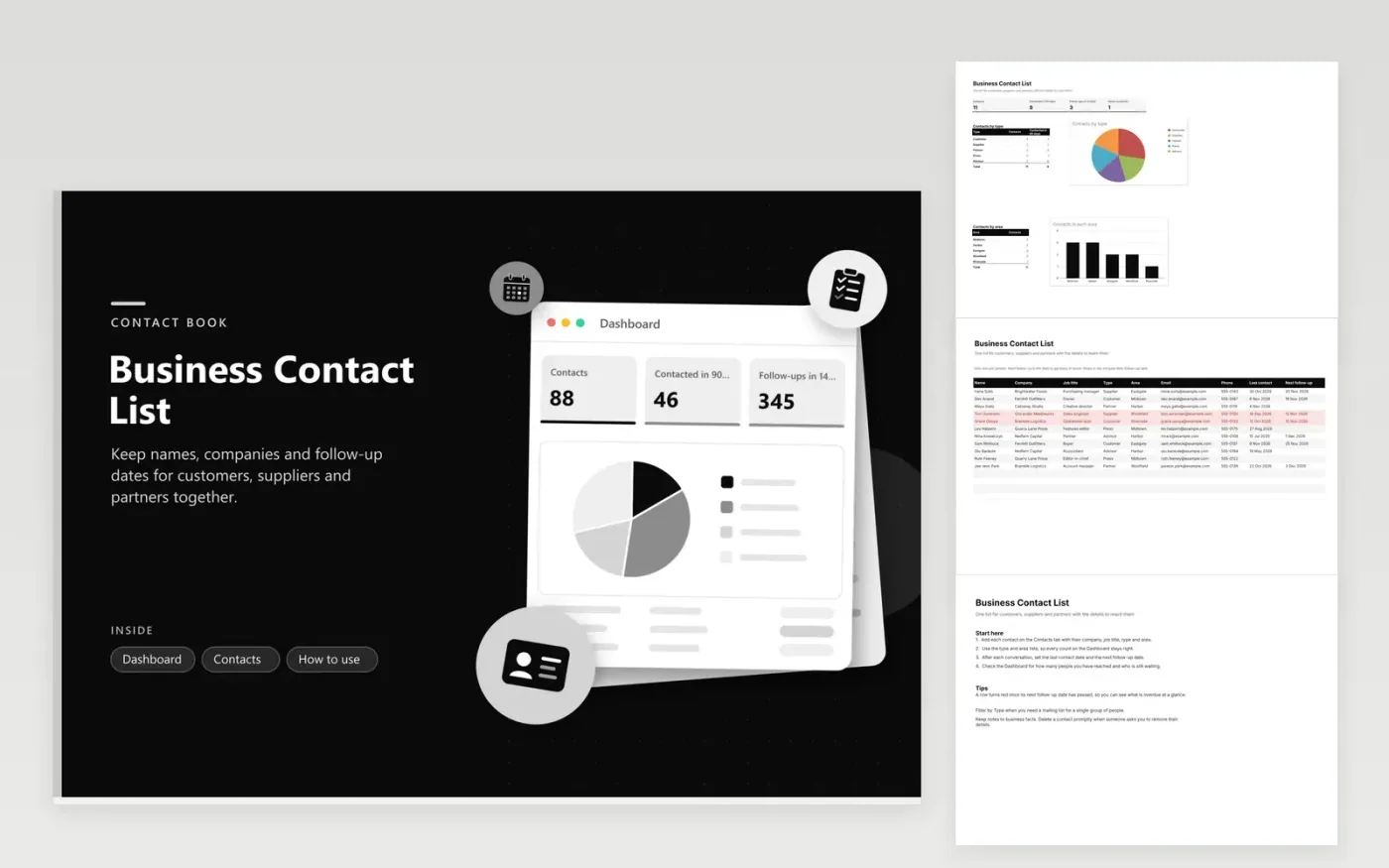
Small business owners and office staff use the Business Contact List as one address book for the people they work with. Every entry on the Contacts tab covers one individual: company, job title, type (Customer, Supplier, Partner, Press or Advisor), area, email, phone number, the date you last spoke and when to follow up. The Dashboard counts contacts by type and by area and shows how many people you reached in the last 90 days.
Pick a type and an area from the dropdowns for each contact, so filtering and counts stay consistent. After every conversation, update the last contact date and set the next follow-up. Rows turn red once a follow-up date has slipped past. Filter by type to build a mailing list for a single group, and remove anyone who asks you to delete their details.
Click Make a copy in Google Sheets, then confirm on the Google page. The copy is saved to your own Google Drive.
Start on the Contacts tab: replace the sample rows with your own.
Keep the formula columns as they are; they fill in as you type.
Read the How to use tab for tips. For Excel, download the .xlsx file instead.
Export them as a CSV file from your phone or email app, then open the file in your spreadsheet and paste each column into the matching field. Check names and phone numbers afterward, because separators sometimes shift during a paste.
Sort the Contacts tab by email and look for rows that repeat the same address. Delete the older copy and keep the row with the latest contact date. Doing this once a quarter keeps the list tidy.
Keep notes to business facts such as role, preferences and what you agreed. Leave out personal details you do not need, and remove a contact when they ask. Check your local privacy rules before storing anything sensitive.
n8n
FeaturedFree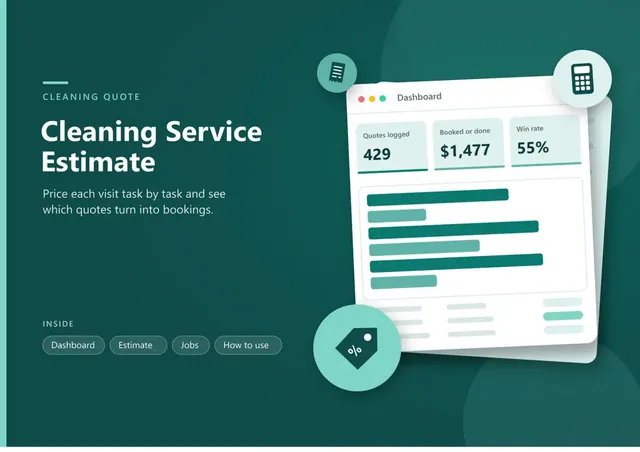
Sheets + Excel5 tabs
Free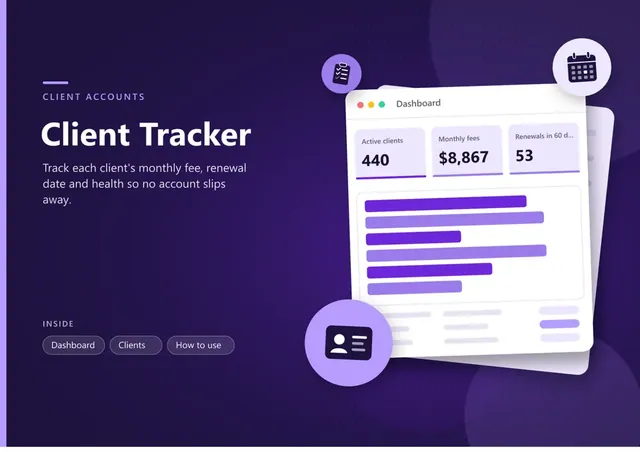
Sheets + Excel4 tabs
Free
Sheets + Excel4 tabs
Free
Sheets + Excel5 tabs
Free
Sheets + Excel4 tabs
Free
Sheets + Excel4 tabs
Free
Sheets + Excel4 tabs
Free
Sheets + Excel3 tabs
Free
Sheets + Excel4 tabs
Free