Lead Intake Webhook
n8n
FeaturedFree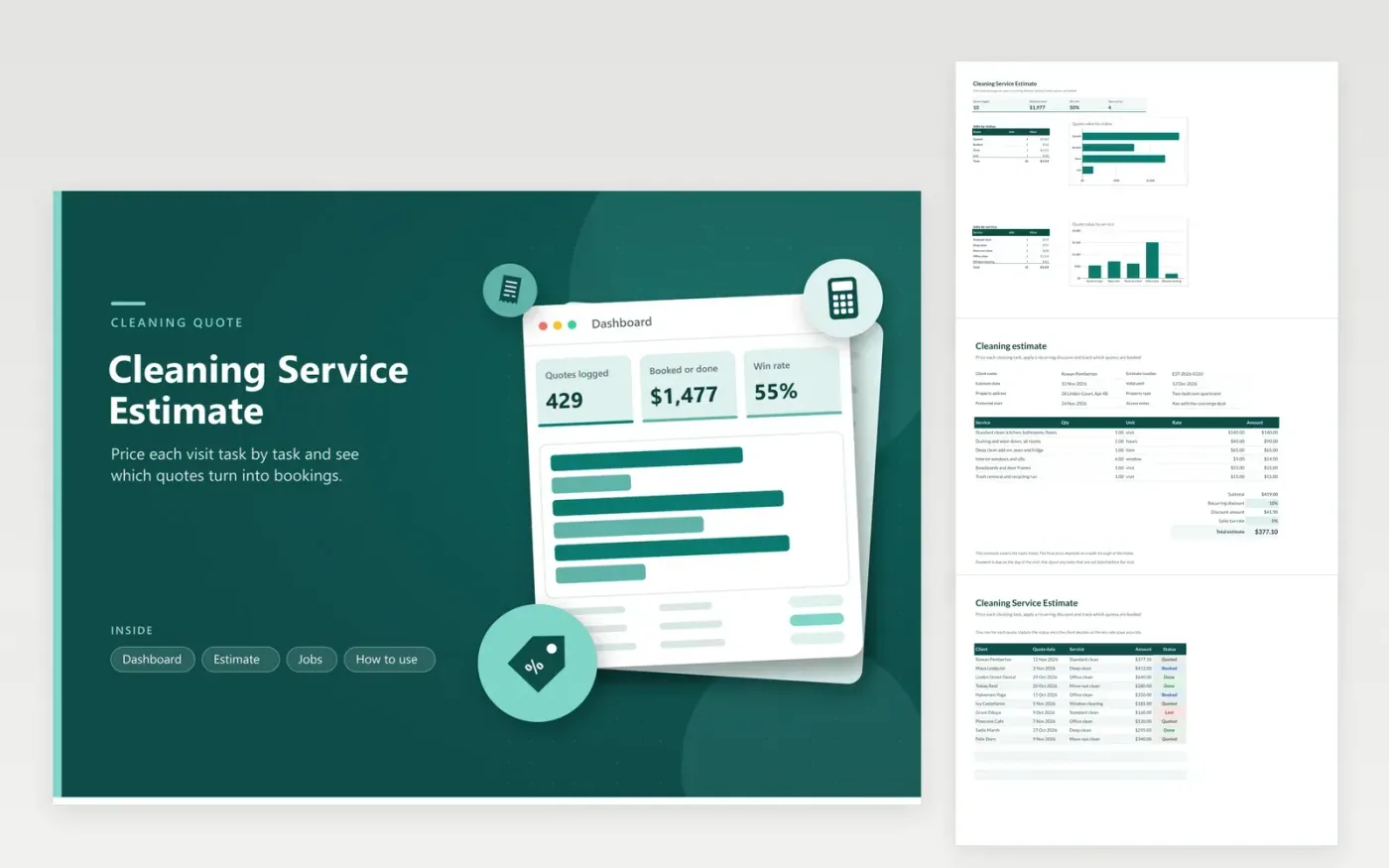
This estimate suits a house or office cleaning business that quotes by task and by visit. The Estimate tab is a page you can send to a client, with the client, property, dates and a list of tasks with quantities, units and rates. Subtotal, recurring discount, sales tax and the total estimate fill in automatically. The Jobs tab logs each quote with its service, amount and status, and the Dashboard reports the quote count, the booked value and the win rate.
Walk through the property before you price it, then give each task a separate row with the quantity you measured. Set a recurring discount only for a schedule the client has agreed to. Check the sales tax rate for your area, because the template starts at zero. After the client decides, update the status on the Jobs tab so the win rate stays accurate.
Click Make a copy in Google Sheets, then confirm on the Google page. The copy is saved to your own Google Drive.
Start on the Estimate tab: replace the sample rows with your own.
Keep the formula columns as they are; they fill in as you type.
Read the How to use tab for tips. For Excel, download the .xlsx file instead.
Enter one visit as a line on the Estimate tab, then enter the recurring discount in the totals. The discount is applied to the subtotal. Set the figure to match your own price list for regular visits rather than using a fixed rule.
The win rate is the share of quotes that became bookings or completed jobs. Results depend on your market, your prices and how quickly you reply, so compare your own rate over several months rather than against a published figure.
Yes. Copy the Estimate tab into a new file, check the Valid until date and the footer, then export it to PDF from the File menu. Keep the Jobs tab out of the copy so your internal figures stay private.
n8n
FeaturedFree
Sheets + Excel4 tabs
Free
Sheets + Excel4 tabs
Free
Sheets + Excel4 tabs
Free
Sheets + Excel4 tabs
Free
Sheets + Excel3 tabs
Free
Sheets + Excel3 tabs
Free