Threat Modelling Workshop Slides
Slides + PowerPoint11 slides
Free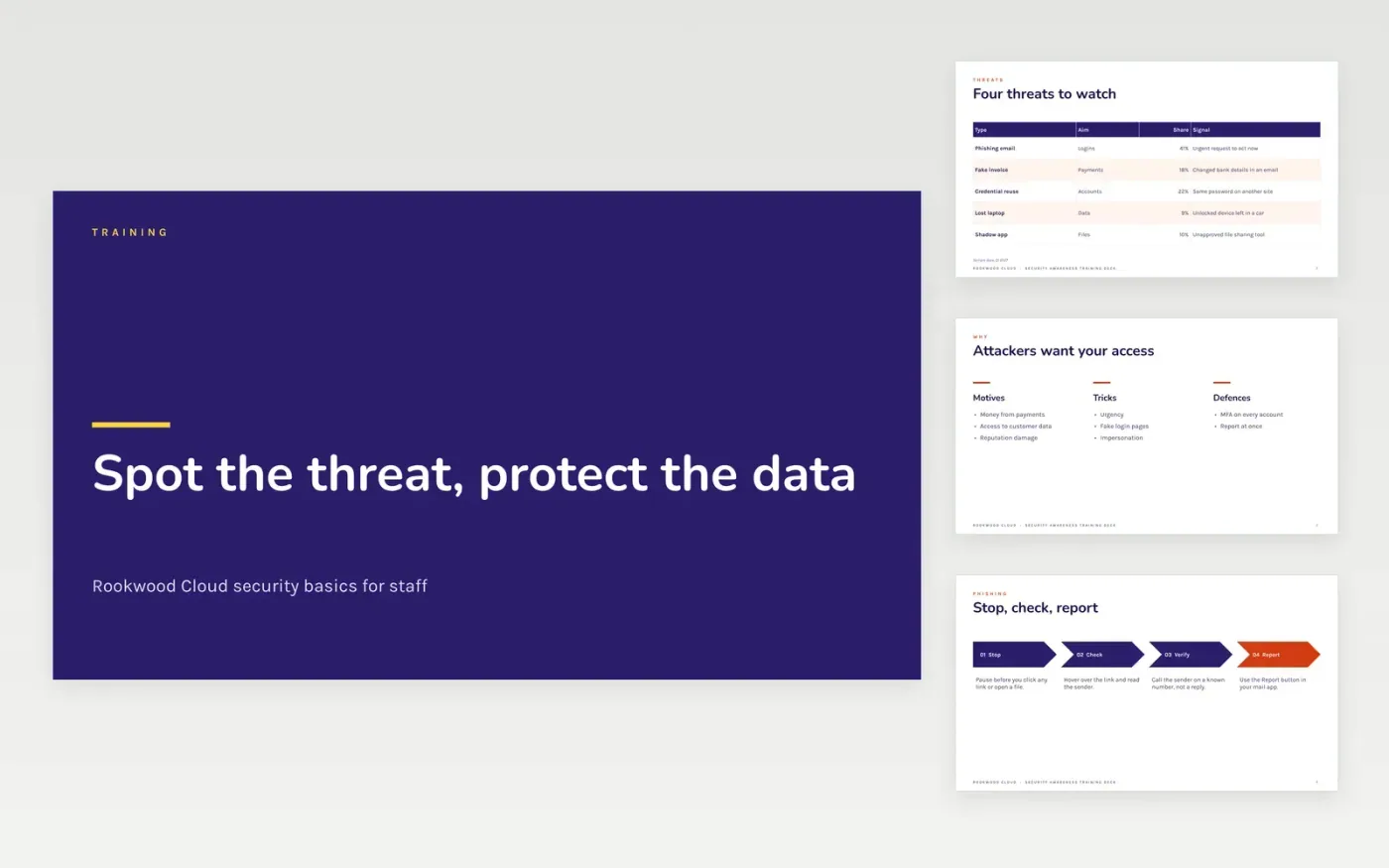
Most security incidents start with a person clicking a link, reusing a password or sending data to the wrong place, and a lecture rarely changes that. This Google Slides awareness deck covers the threats staff meet most, the signs of a phishing email, passwords and multi-factor sign-in, data handling, a quiz with an answer, and the reporting steps. It is built to run as a short session with time for questions, and to repeat each quarter.
The sample is set at Rookwood Cloud, a fictional company, and uses sample figures such as 34 email-borne incidents and a 4.6% phishing click rate. Replace the threat table, quiz and examples with incidents from your own reports, keep the reporting steps matching your real help desk, and add a training date so staff can see when the content was last refreshed.
Click Make a copy in Google Slides, then confirm on the Google page. The copy is saved to your own Google Drive.
Replace the threat table and the examples with incidents from your own reports and help desk tickets.
Update the quiz questions and answers, then mark each sample figure as sample data until it is checked.
Set the reporting contacts to your real security and help desk addresses before the session.
Delete the guide slide, then share the deck with staff or present it at the next training session.
No. Rookwood Cloud, every person named, every email address ending in .example, and every incident count, rate and percentage are fictional and included only to show the layout and tone.
Most teams run a short refresher each quarter and a full session once a year. Repeat the quiz after any phishing test that shows a high click rate, so the lesson lands where it is needed.
No. The deck explains what to look for, while simulations test whether people apply it. Use both, and review results with the team in plain terms rather than naming individuals who clicked.
More Google Slides templatesMore developer workflows templates
Slides + PowerPoint11 slides
Free
Slides + PowerPoint12 slides
Free
Docs + Word9 pages
Free
Docs + Word7 pages
Free
Docs + Word7 pages
Free
Docs + Word7 pages
Free
Docs + Word8 pages
Free
Docs + Word8 pages
Free