Company Magazine
Docs + Word7 pages
FeaturedFree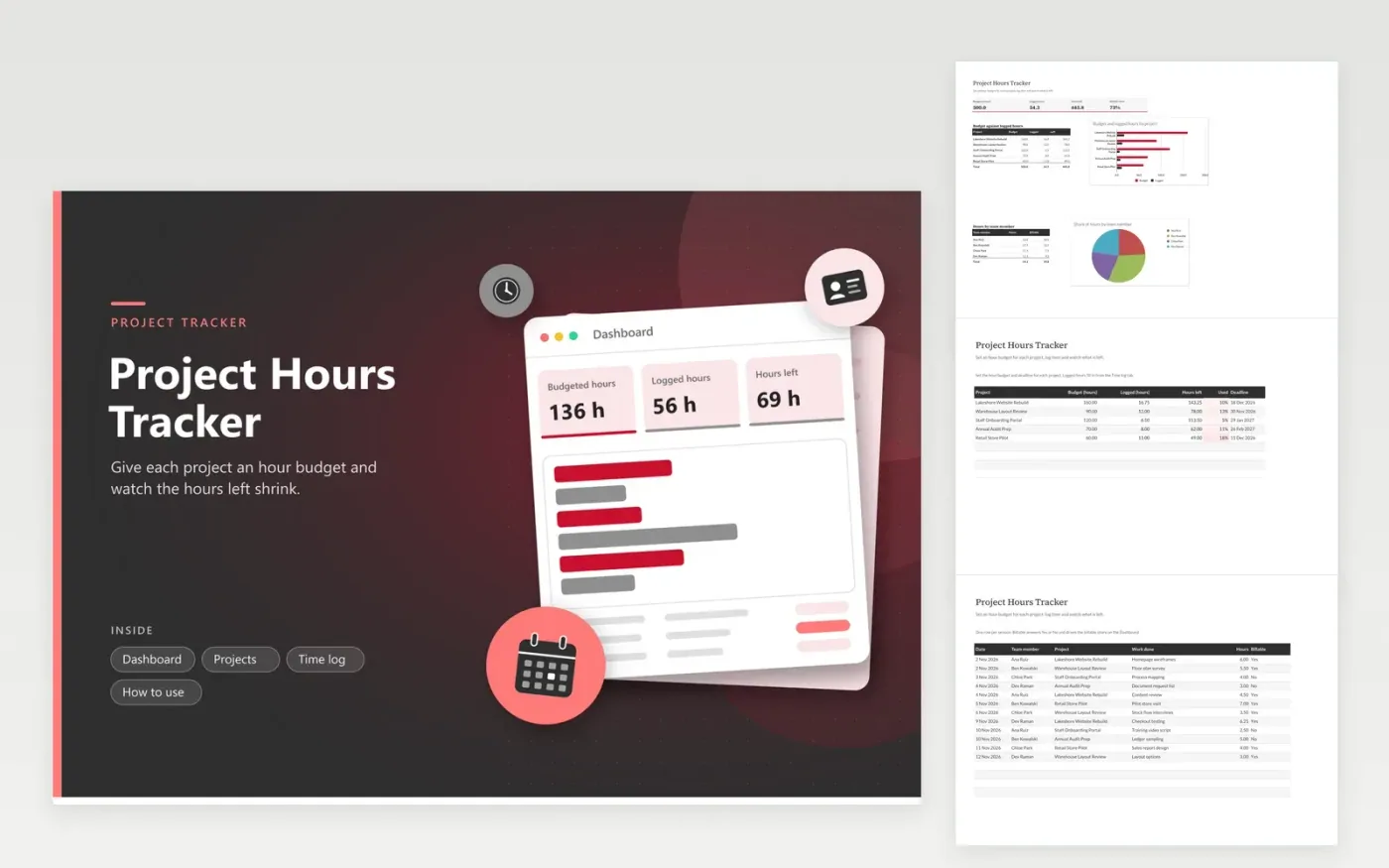
The Project Hours Tracker suits consultants, agencies and internal teams that work to a fixed number of hours per project. The Projects tab holds the budget and deadline for each job, while logged hours and hours left fill in from the Time log. The Dashboard compares budget with logged hours by project and shows hours by team member, with the billable share as a percentage.
Give each project a realistic budget before the work starts, and review the used percentage every Friday. Projects that go over budget turn red on the Projects tab. Mark the Billable column honestly, because it drives the billable share that managers often check against a target. To rename a project, change it on both the Projects tab and the Project list on the Time log.
Click Make a copy in Google Sheets, then confirm on the Google page. The copy is saved to your own Google Drive.
Start on the Projects tab: replace the sample rows with your own.
Keep the formula columns as they are; they fill in as you type.
Read the How to use tab for tips. For Excel, download the .xlsx file instead.
Type the project name on the next empty row of the Projects tab, then add its budget and deadline. Enter the identical name in the Time log Project list, which is editable under Data validation. Logged hours and percent used fill in as soon as you log time against it.
It is the hours marked Yes in the Billable column as a share of all hours logged. It is a simple ratio, not a fee calculation. Use it to see how much of the team's time is charged to clients compared with internal work.
Enter time as decimals, so 15 minutes is 0.25 hours and 1 hour 20 minutes is 1.33. If your team prefers minutes, log minutes in a spare column and divide by 60 before adding the totals to the Hours column.
Docs + Word7 pages
FeaturedFree
Docs + Word21 pages
FeaturedFree
Slides + PowerPoint16 slides
FeaturedFree
Sheets + Excel5 tabs
Free
Sheets + Excel4 tabs
Free
Sheets + Excel5 tabs
Free
Sheets + Excel5 tabs
Free
Sheets + Excel4 tabs
Free
Sheets + Excel4 tabs
Free
Sheets + Excel3 tabs
Free
Sheets + Excel3 tabs
Free
Sheets + Excel3 tabs
Free