Annual Report
Docs + Word6 pages
FeaturedFree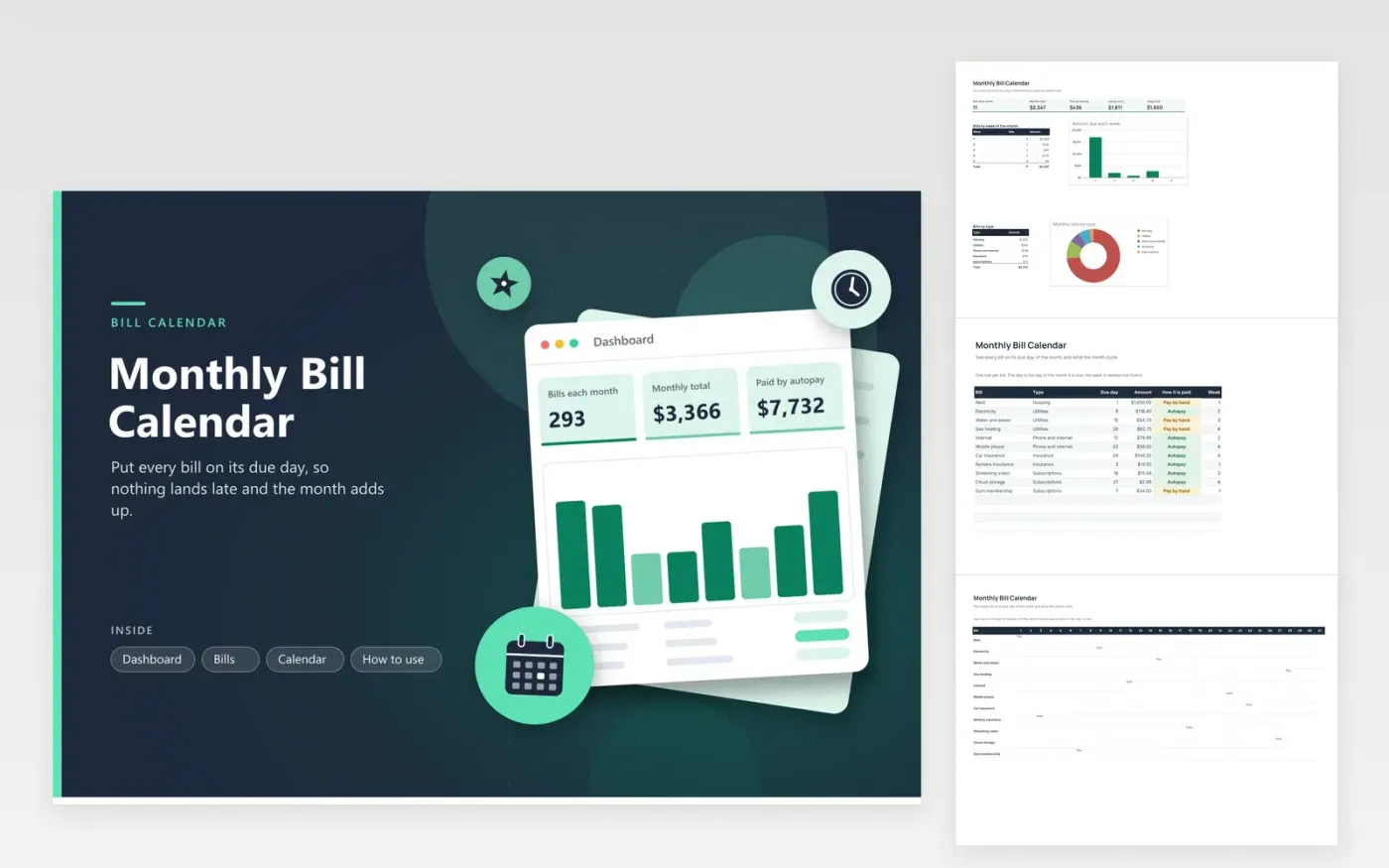
The Monthly Bill Calendar is for anyone who wants bills to fall on the right day without a reminder for each one. The Bills tab lists each bill with its type, due day, amount and whether it is autopay or paid by hand. The Calendar tab is a grid of the month's 31 days with a mark on each bill's due day, and the Dashboard totals the month and charts the amount due by week and by type.
The sample has eleven bills, from rent on the first to a cloud storage plan on the twenty-seventh. Overwrite them with your bills and enter the due day exactly as printed on each statement. Check the weekly chart before choosing a new day for a bill, since a week with several bills close together can strain a tight budget.
Click Make a copy in Google Sheets, then confirm on the Google page. The copy is saved to your own Google Drive.
Start on the Bills tab: replace the sample rows with your own.
Keep the formula columns as they are; they fill in as you type.
Read the How to use tab for tips. For Excel, download the .xlsx file instead.
Many companies take payment on the next working day, but rules vary. Enter the day printed on the bill as its due day, and check the statement or the provider's terms for weekend rules.
Yes. Bills and their due days usually stay the same from month to month, so only the amounts change. Update the amount column when a bill changes, and the totals and weekly chart will follow.
No. The marks on the Calendar tab are typed in, so after you move a bill, clear its old mark and add one on the new day. Dashboard totals and the weekly chart refresh automatically.
Docs + Word6 pages
FeaturedFree
Excel
FeaturedFree
Sheets + Excel9 tabs
Free
Sheets + Excel5 tabs
Free
Sheets + Excel5 tabs
Free
Sheets + Excel4 tabs
Free
Sheets + Excel4 tabs
Free
Sheets + Excel4 tabs
Free
Sheets + Excel4 tabs
Free
Sheets + Excel3 tabs
Free