Annual Report
Docs + Word6 pages
FeaturedFree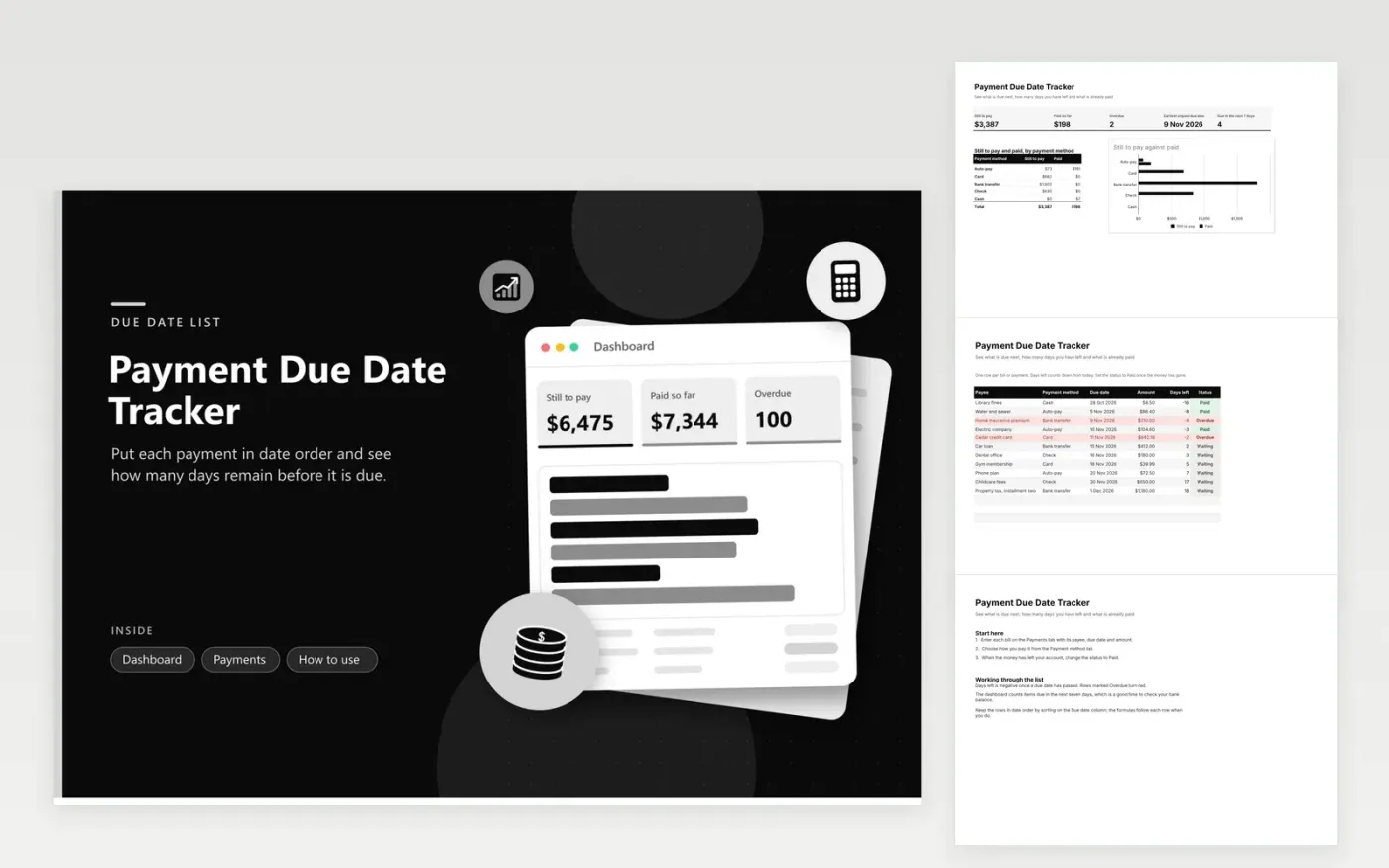
The Payment Due Date Tracker is for anyone who juggles bills paid by card, bank transfer, check or cash. The Payments tab lists the payee, payment method, due date, amount, status and a Days left column that counts down from today. Overdue rows turn red so they stand out the moment you open the file.
The Dashboard shows what is still to pay, what you have paid, how many items are overdue, the earliest unpaid due date and how many fall within the next seven days. A chart compares unpaid and paid amounts by payment method, which helps when you check whether the account behind each method has enough money in it.
Click Make a copy in Google Sheets, then confirm on the Google page. The copy is saved to your own Google Drive.
Start on the Payments tab: replace the sample rows with your own.
Keep the formula columns as they are; they fill in as you type.
Read the How to use tab for tips. For Excel, download the .xlsx file instead.
Not by itself. Google Sheets and Excel do not send alerts from this file. The Due in the next 7 days figure on the Dashboard shows what needs attention, so check it each time you open the file, or set a calendar reminder that points to it.
Change its status to Paid when the money leaves your account and note the date in the description. The row stops counting as overdue, but the record still shows the bill was late, which helps when you query a charge.
Add one row for each due date. Copy the last row, change the due date and reset the status to Waiting. Keeping a full year of rows makes it easy to see your yearly spending on each payee.
Docs + Word6 pages
FeaturedFree
Excel
FeaturedFree
Sheets + Excel9 tabs
Free
Sheets + Excel5 tabs
Free
Sheets + Excel5 tabs
Free
Sheets + Excel5 tabs
Free
Sheets + Excel4 tabs
Free
Sheets + Excel4 tabs
Free
Sheets + Excel4 tabs
Free
Sheets + Excel3 tabs
Free