Annual Report
Docs + Word6 pages
FeaturedFree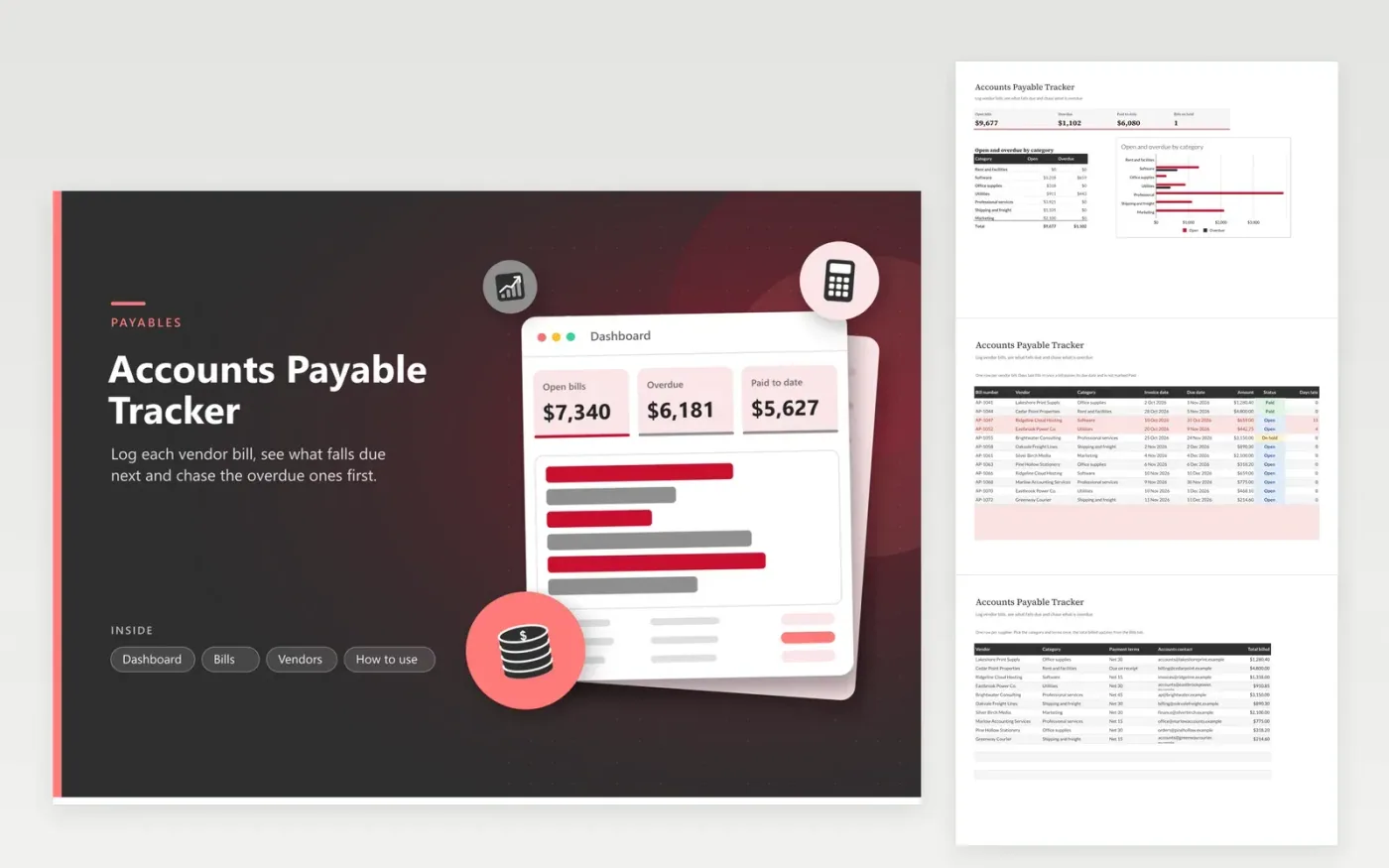
Bookkeepers, office managers and small business owners use this accounts payable tracker to keep every supplier bill in one place. On the Bills tab every invoice gets a row holding its bill number, vendor, category, invoice and due dates, amount and status, and works out the days late for anything not yet paid. The Vendors tab keeps each supplier's payment terms and accounts contact, and totals what has been billed to them. The Dashboard shows open bills, overdue amounts, paid totals and a chart of open and overdue money by category.
Start by listing your main suppliers on the Vendors tab so every bill can be matched to its terms. Sort the Bills tab by due date before each payment run, and change the status to Paid as the money leaves your account. If the bills run past a few hundred rows, copy the finished months to an archive sheet so the working file stays quick. Red rows mark overdue bills, so a short weekly look at the Dashboard keeps late payments to a minimum.
Click Make a copy in Google Sheets, then confirm on the Google page. The copy is saved to your own Google Drive.
Start on the Bills tab: replace the sample rows with your own.
Keep the formula columns as they are; they fill in as you type.
Read the How to use tab for tips. For Excel, download the .xlsx file instead.
Change its status on the Bills tab from Open or On hold to Paid. The amount drops out of open bills on the Dashboard, and its days late stops counting. Keep the bill number so the record matches what your accounting system shows.
The status column holds Open, On hold or Paid, so a part-payment needs its own row. Enter the remaining balance as a new bill with the same vendor and a suffix on the bill number, such as AP-1047B. Each amount then stays visible and counts correctly on the Dashboard.
Days late is today's date minus the due date, for any bill that has passed its due date and is not marked Paid. The figure refreshes whenever the sheet recalculates, so an overdue bill keeps counting until you pay it or correct its due date.
Docs + Word6 pages
FeaturedFree
Excel
FeaturedFree
Sheets + Excel5 tabs
Free
Sheets + Excel4 tabs
Free
Sheets + Excel5 tabs
Free
Sheets + Excel4 tabs
Free
Sheets + Excel4 tabs
Free
Sheets + Excel5 tabs
Free
Sheets + Excel4 tabs
Free
Sheets + Excel4 tabs
Free
Sheets + Excel4 tabs
Free
Sheets + Excel4 tabs
Free
Sheets + Excel5 tabs
Free
Sheets + Excel4 tabs
Free