Project Proposal
Docs + Word5 pages
FeaturedFree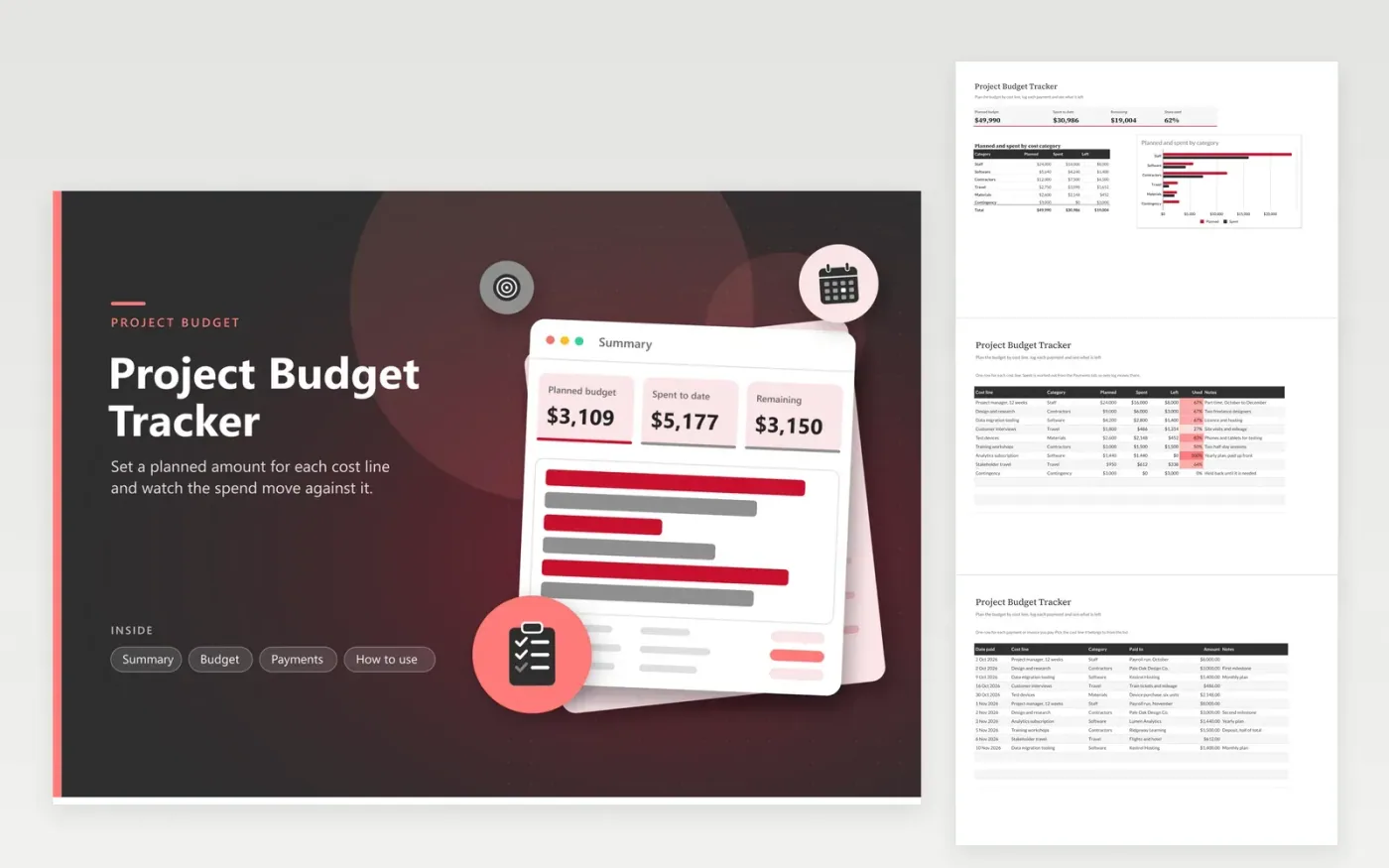
The Project Budget Tracker suits project managers, consultants and team leads who must keep spending within an agreed plan. On the Budget tab, every cost line shows with its category, planned amount, spent to date, amount left and percentage used. The Payments tab is the single log of money paid, with the date, cost line, category and payee. The Summary tab shows planned and spent totals, the share of budget used and a category breakdown with a chart.
The sample project runs for twelve weeks and includes staff, contractor, software, travel and materials costs, with the contingency line still unused. Keep cost line names exactly the same on both tabs, because each payment finds its line by name. Review the Summary before each steering meeting. When a line needs more money, change its planned amount and add a note explaining why, so the history stays visible.
Click Make a copy in Google Sheets, then confirm on the Google page. The copy is saved to your own Google Drive.
Start on the Budget tab: replace the sample rows with your own.
Keep the formula columns as they are; they fill in as you type.
Read the How to use tab for tips. For Excel, download the .xlsx file instead.
A row turns red on the Budget tab when the amount spent is greater than the planned amount, and its Left figure goes negative. Look through the Payments tab for entries on that line, or raise the plan and leave a note explaining why.
Keep one project per file. Each Summary total counts every row on its tabs, so two projects in one set of tabs would be added together. Duplicate the workbook for each project and rename it.
Yes, if you want the Spent column to be complete. Add each past payment to the Payments tab along with its date and cost line, and the totals will match your records.
More Google Sheets templatesMore project management templates
Docs + Word5 pages
FeaturedFree
Docs + Word1 page
Free
Docs + Word11 pages
Free
Sheets + Excel4 tabs
Free
Sheets + Excel4 tabs
Free
Sheets + Excel3 tabs
Free
Sheets + Excel3 tabs
Free
Sheets + Excel3 tabs
Free
Sheets + Excel5 tabs
Free
Sheets + Excel3 tabs
Free