Acceptable Use Policy
Docs + Word7 pages
Free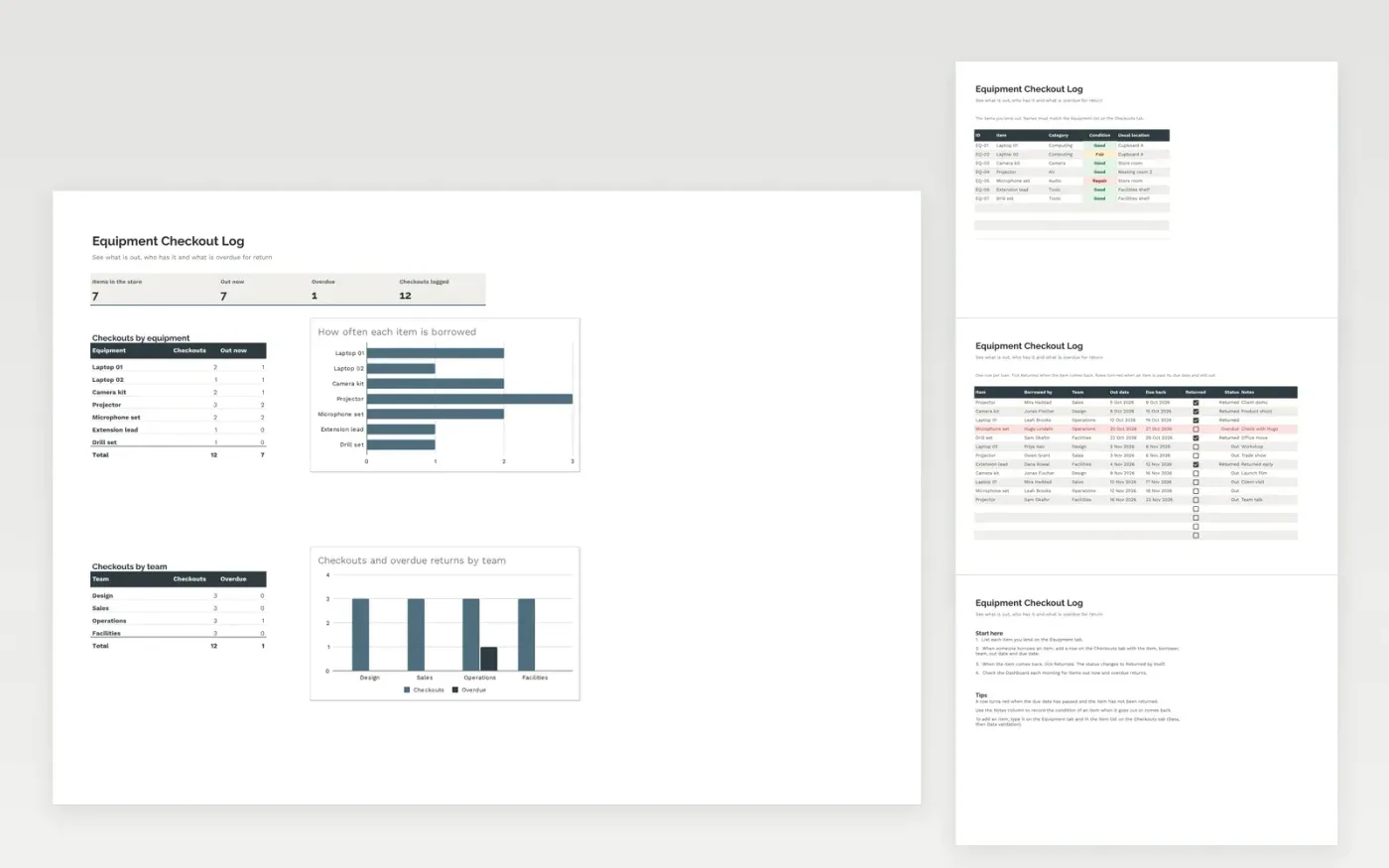
This template keeps track of shared equipment such as laptops, cameras and projectors. The Equipment tab lists each item with its condition and usual location. The Checkouts tab is the loan log, with the borrower, team, out date, due date and a tick box for when the item comes back.
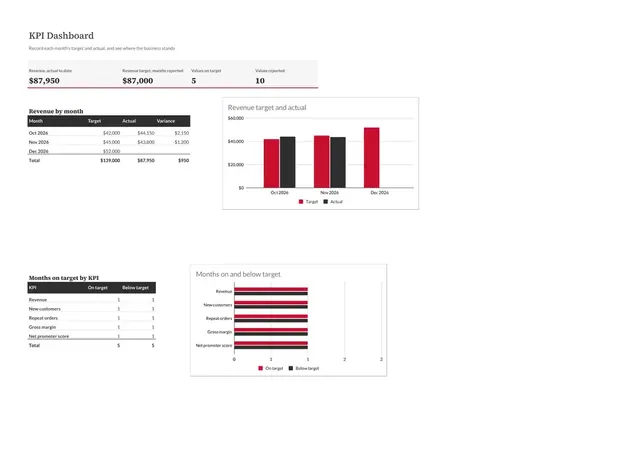
Each loan shows as Out, Overdue or Returned, and overdue rows turn red. The Dashboard shows how many items are out now, how many are overdue and how often each item and team borrows.
It comes with sample data. Make a copy, then replace the sample rows with your own equipment and loans. Formulas, dropdowns and highlights update on their own.
Click Make a copy in Google Sheets, then confirm on the Google page. The copy is saved to your own Google Drive.
Start on the Equipment tab: replace the sample rows with your own.
Keep the formula columns as they are; they fill in as you type.
Read the How to use tab for tips. For Excel, download the .xlsx file instead.
Yes. Download the template and use it in Google Sheets or Excel at no cost.
Yes. Download the .xlsx file to open it in Excel. The tick boxes, dropdowns and highlights work in both Excel and Google Sheets.
Tick the Returned box on its row in the Checkouts tab. The status changes to Returned and the row stops being highlighted.
More Google Sheets templatesMore business operations templates
Docs + Word7 pages
Free
Docs + Word8 pages
Free
n8n
Free
Sheets + Excel4 slides
Free
Sheets + Excel5 slides
Free
Docs + Word1 page
Free
Docs + Word1 page
Free
Docs + Word1 page
Free