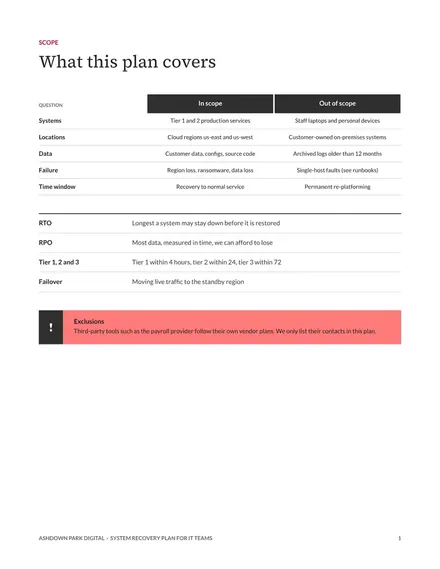
System Recovery Plan for IT Teams
Docs + Word7 pages
Free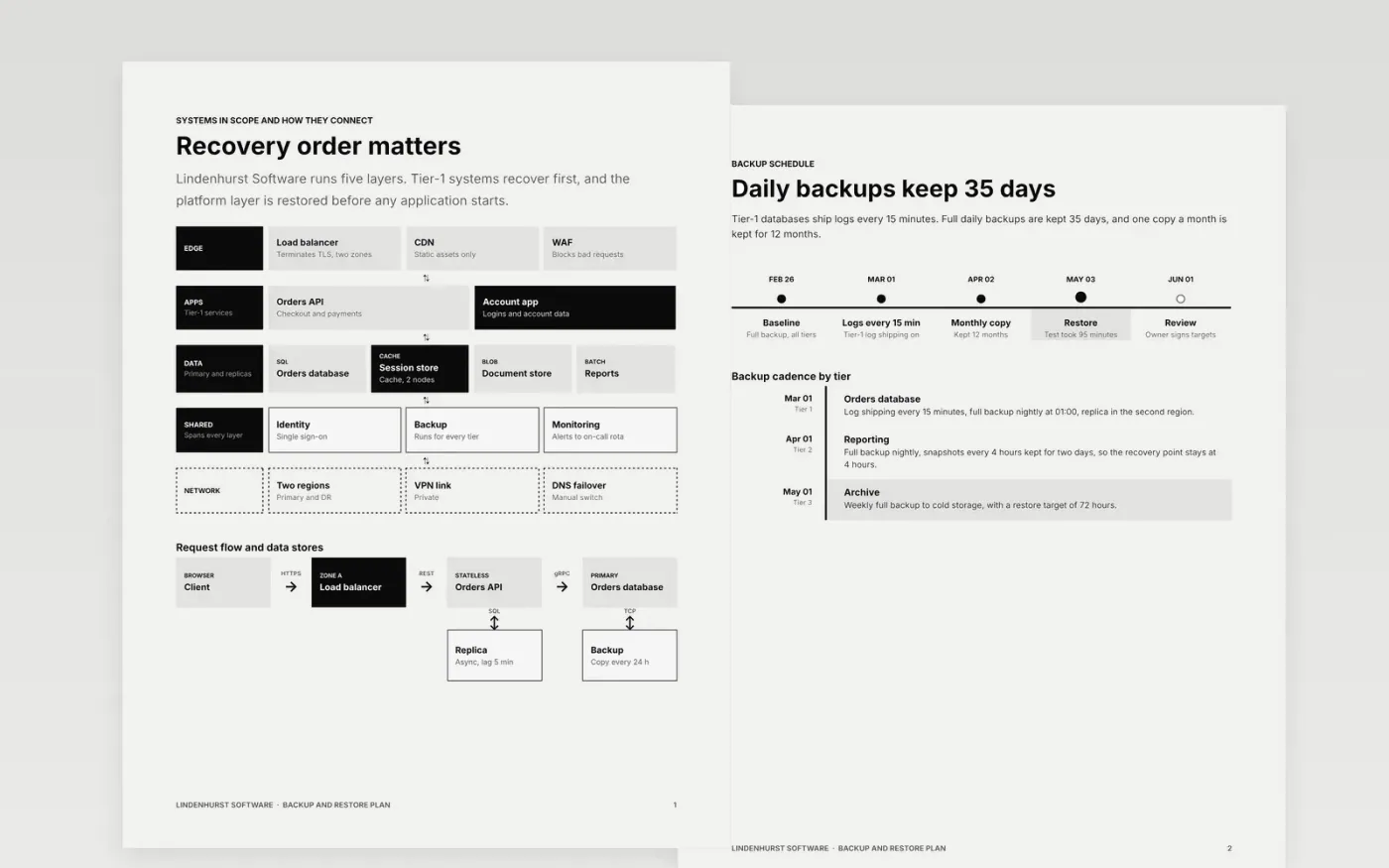
A backup that nobody has restored is a guess, and a recovery plan that ignores the people needed during downtime fails when it matters most. This template sets out the plan in seven pages: systems and tiers, the backup schedule, storage locations, restore steps and tests, followed by a guide page. Recovery time and recovery point objectives sit beside each system as numbers, so the recovery order is agreed before an incident rather than during one.
The sample shows Lindenhurst Software, a fictional software company whose tier-1 orders database has a 2-hour recovery time and a 15-minute recovery point. Its last restore test took 95 minutes and passed. Replace the systems, owners, schedules and contacts with your own, and record your real test results on the tests page. The organisation, people and figures are fictional sample data.
Click Make a copy in Google Docs, then confirm on the Google page. The copy is saved to your own Google Drive.
Replace the systems on page 1 with your own, and assign each one to a tier with the owner who confirmed its RTO and RPO.
Set the backup table and timeline to your real schedule, locations and retention, with the date of your last verified restore.
Write restore steps for your top three systems, then test each one in a sandbox and record the time taken.
Delete the guide page, then share the copy with auditors or present it to the operations and executive team.
Yes. Make a copy in Google Docs and it is saved to your own Google Drive, where you can change every page, delete the sample rows and add your own systems.
No. Lindenhurst Software, its people, the email addresses and every recovery time, backup count and test result are fictional sample data, written to show a finished plan.
Start with what the business can tolerate. Agree each target with the system owner, confirm the architecture can meet it, and test the restore against that target before you sign the plan.
More Google Docs templatesMore developer workflows templates
Docs + Word7 pages
Free
Docs + Word6 pages
Free
Slides + PowerPoint11 slides
Free