Annual Report
Docs + Word6 pages
FeaturedFree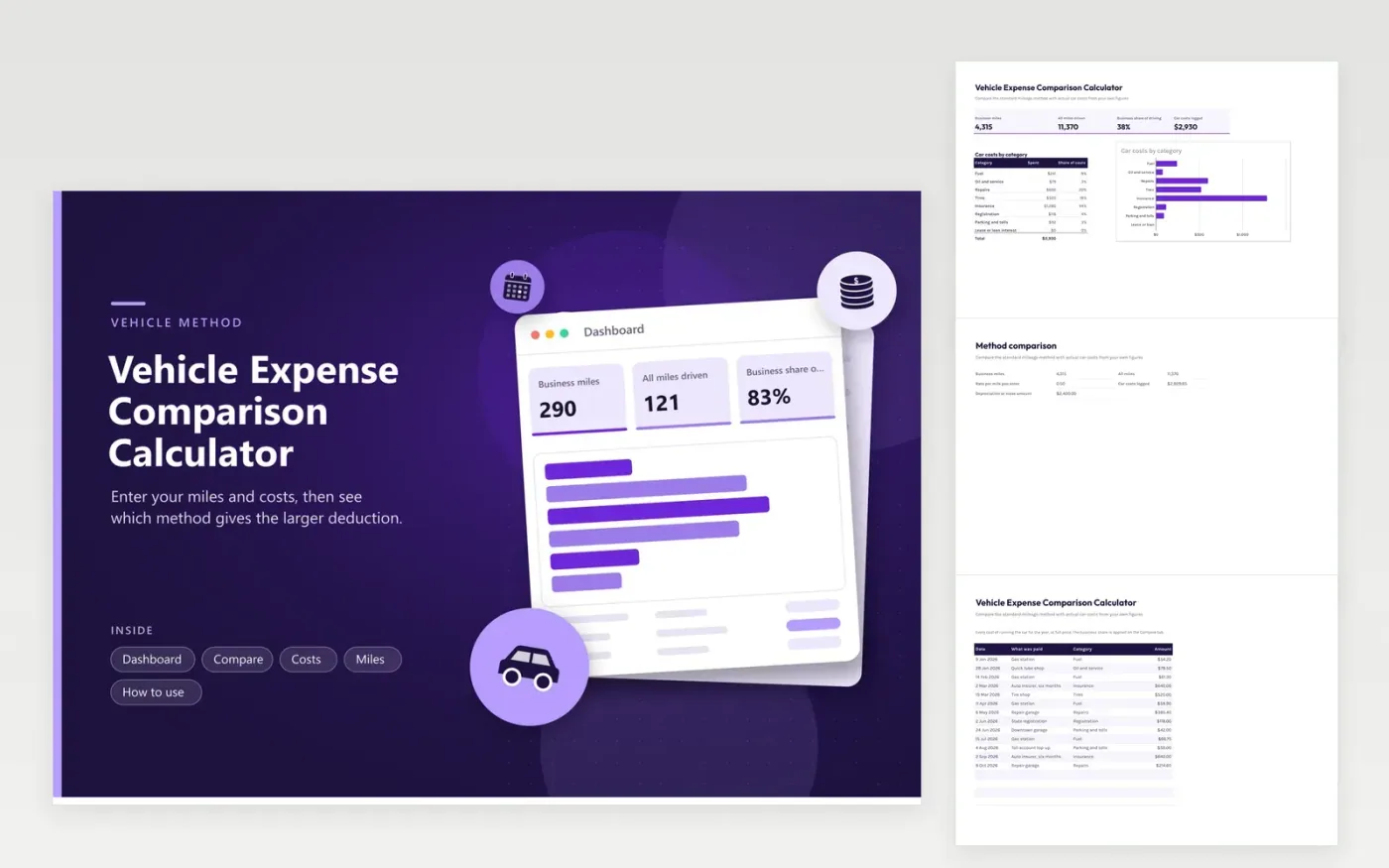
Drivers who use a car for work use this vehicle expense comparison calculator to see which deduction method gives the larger figure on their own numbers. The Costs tab lists everything spent on the car. The Miles tab records business miles and all miles by month. The Compare tab applies the rate you enter to the business miles, applies the business share to total costs and shows the difference. The Dashboard summarizes miles and costs by category.
Tax rules decide which method you may use and when you can switch, so treat the result as a planning figure. The mileage rate changes every year, which is why it is an input cell. Check the IRS rate before you trust the answer. Start the Miles tab at the beginning of the year, because a missing month weakens both methods.
Click Make a copy in Google Sheets, then confirm on the Google page. The copy is saved to your own Google Drive.
Start on the Compare tab: replace the sample rows with your own.
Keep the formula columns as they are; they fill in as you type.
Read the How to use tab for tips. For Excel, download the .xlsx file instead.
Multiply business miles by the mileage rate for one figure. For the other, add your car costs and any depreciation or lease amount and multiply by the business share of your driving. The Compare tab does both and shows the difference.
The IRS publishes the standard mileage rate each year. Type it into the rate cell on the Compare tab in place of the example value. This sheet does not hold a built-in rate.
A log of business trips with date, miles and purpose, plus receipts for car costs if you use actual costs. The Miles tab keeps the totals; keep your trip detail in a separate mileage log.
Docs + Word6 pages
FeaturedFree
Excel
FeaturedFree
Sheets + Excel6 tabs
Free