Annual Report
Docs + Word6 pages
FeaturedFree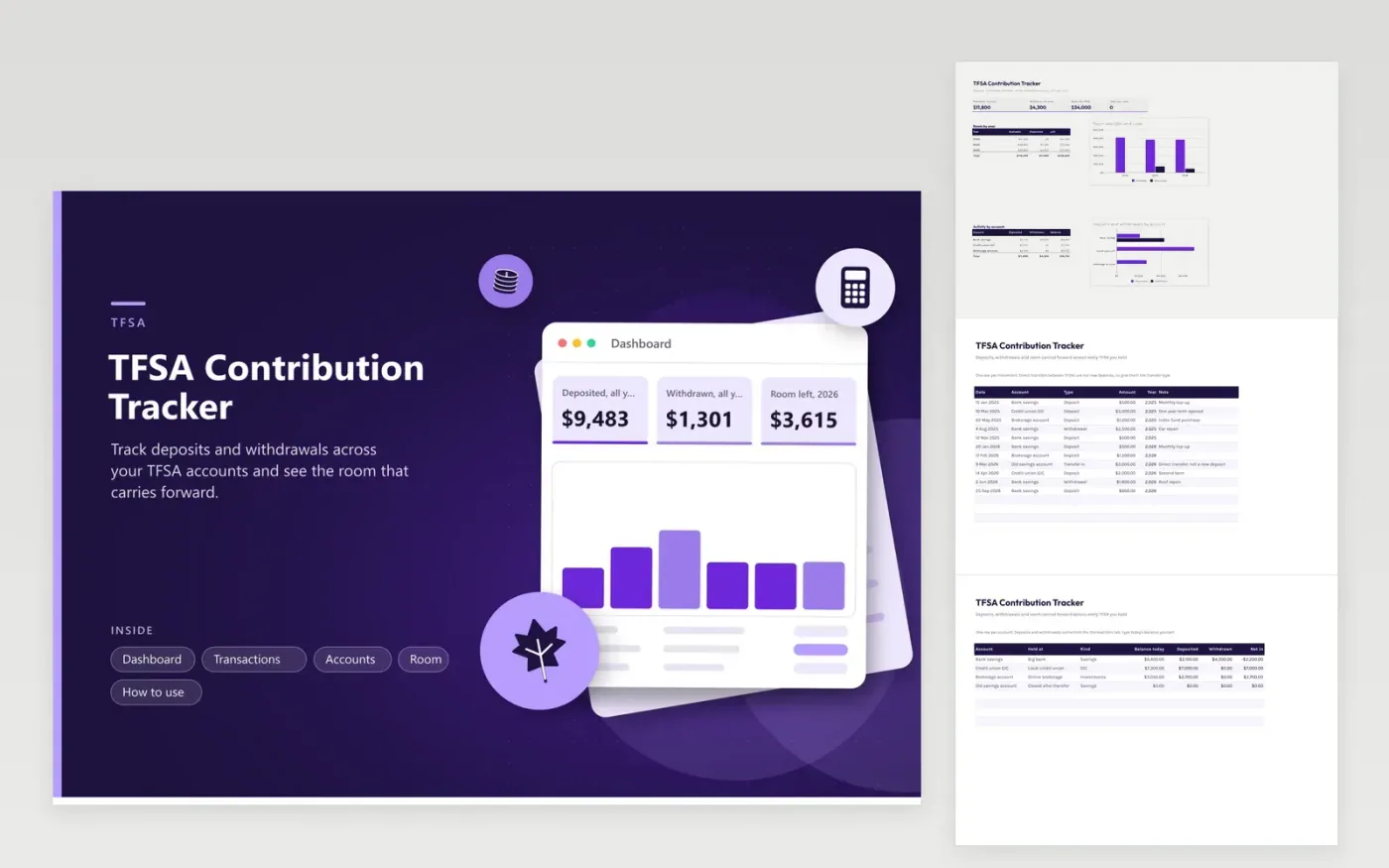
People with a TFSA at more than one institution use this sheet to get a full view. The Transactions tab holds each deposit, withdrawal and direct transfer. The Accounts tab shows every account with its balance and net money in. The Room tab adds new room, unused room and last year's withdrawals, then subtracts deposits. The Dashboard charts room against use and shows activity by account.
Take new and unused room from your CRA My Account instead of guessing, and update it after each January. Mark direct transfers with the Transfer type so they are not counted as deposits. Review the Years over room figure on the Dashboard; any count above zero is a prompt to look at that year and ask a tax professional what to do.
Click Make a copy in Google Sheets, then confirm on the Google page. The copy is saved to your own Google Drive.
Start on the Transactions tab: replace the sample rows with your own.
Keep the formula columns as they are; they fill in as you type.
Read the How to use tab for tips. For Excel, download the .xlsx file instead.
A withdrawal does not restore room right away. The room returns on January 1 of the following year. The Room tab uses the prior year withdrawals for that reason, so you can plan a re-deposit.
Your CRA My Account lists your room for the year. Enter it in the Room tab as new room and unused room. This sheet does not contain the yearly figure because it changes and depends on your history.
Not when it is a direct transfer between TFSAs. Use the Transfer in and Transfer out types so the Room tab ignores them. A withdrawal followed by a new deposit is different and counts against room.
Docs + Word6 pages
FeaturedFree
Excel
FeaturedFree
Sheets + Excel6 tabs
Free