Annual Report
Docs + Word6 pages
FeaturedFree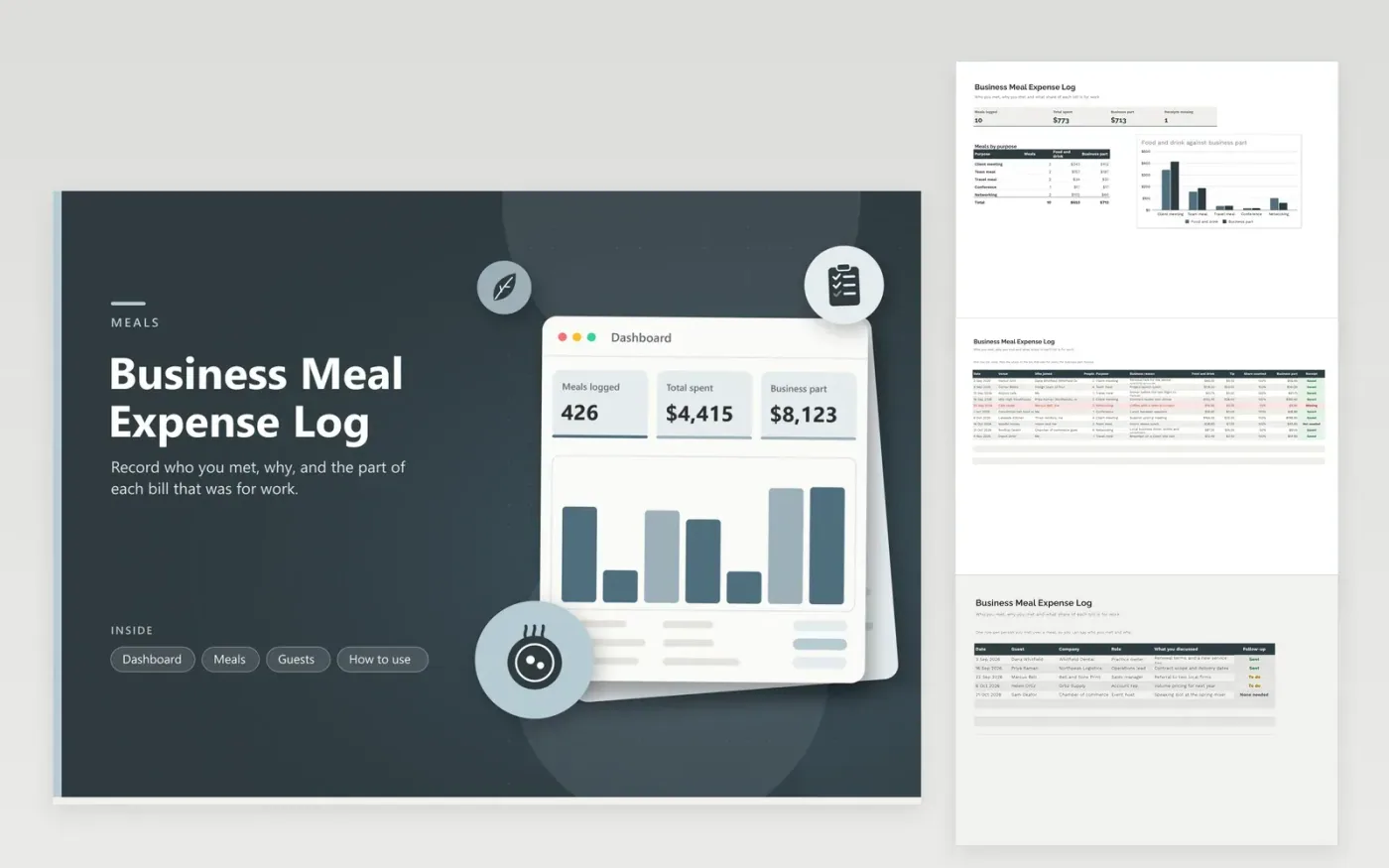
Consultants, sales reps, shop owners and anyone who buys lunch for a client use this log to keep meal records in good order. The Meals tab holds one row per meal: date, venue, guests, headcount, purpose, business reason, food, tip, the share you count and the receipt status. The Guests tab lists the people you met and what came of it. The Dashboard counts meals, sums spending and compares each purpose in a column chart.
Fill in a row on the day of the meal, because memory of who came fades fast. A reason like "Renewal talk with the dental practice" is far more useful than "lunch." Mark a share below 100 percent when part of the bill was personal. Clear the red Missing rows once a month so a year-end search for receipts is never needed.
Click Make a copy in Google Sheets, then confirm on the Google page. The copy is saved to your own Google Drive.
Start on the Meals tab: replace the sample rows with your own.
Keep the formula columns as they are; they fill in as you type.
Read the How to use tab for tips. For Excel, download the .xlsx file instead.
Most tax authorities look for the date, place, cost, the people present and the business reason. This log has a column for each, plus the receipt status. Check current IRS rules for exact wording, since they change.
Pick Travel meal as the purpose and name the trip in the reason, such as the city and client visit. Keep the receipt for each meal. A Missing status keeps the row red until you save it.
That depends on current IRS rules and the type of meal, so this sheet does not decide it. Enter the share your tax professional advises in the Share counted column and the business part updates for you.
Docs + Word6 pages
FeaturedFree
Excel
FeaturedFree
Sheets + Excel6 tabs
Free